
How to customize pricing rules and default settings?
Set Importify pricing rules and default options before importing products so new listings use your preferred markup and product settings.
On this page
Importify provides options to customize pricing rules and default settings. These can be accessed through the Importify extension or the dashboard settings page.
Understanding Pricing Rules
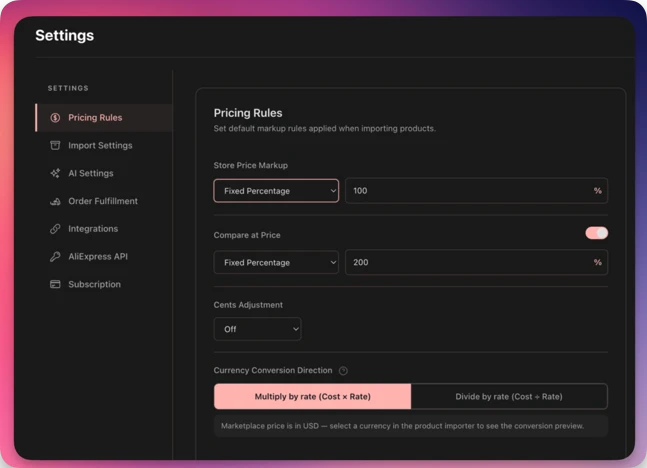
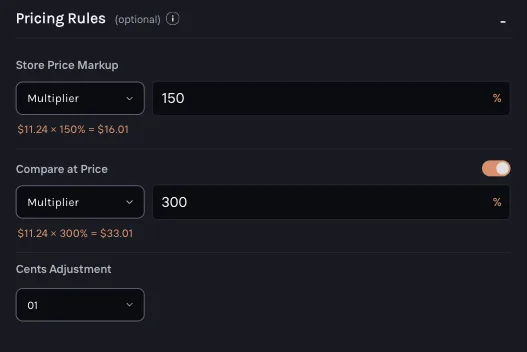
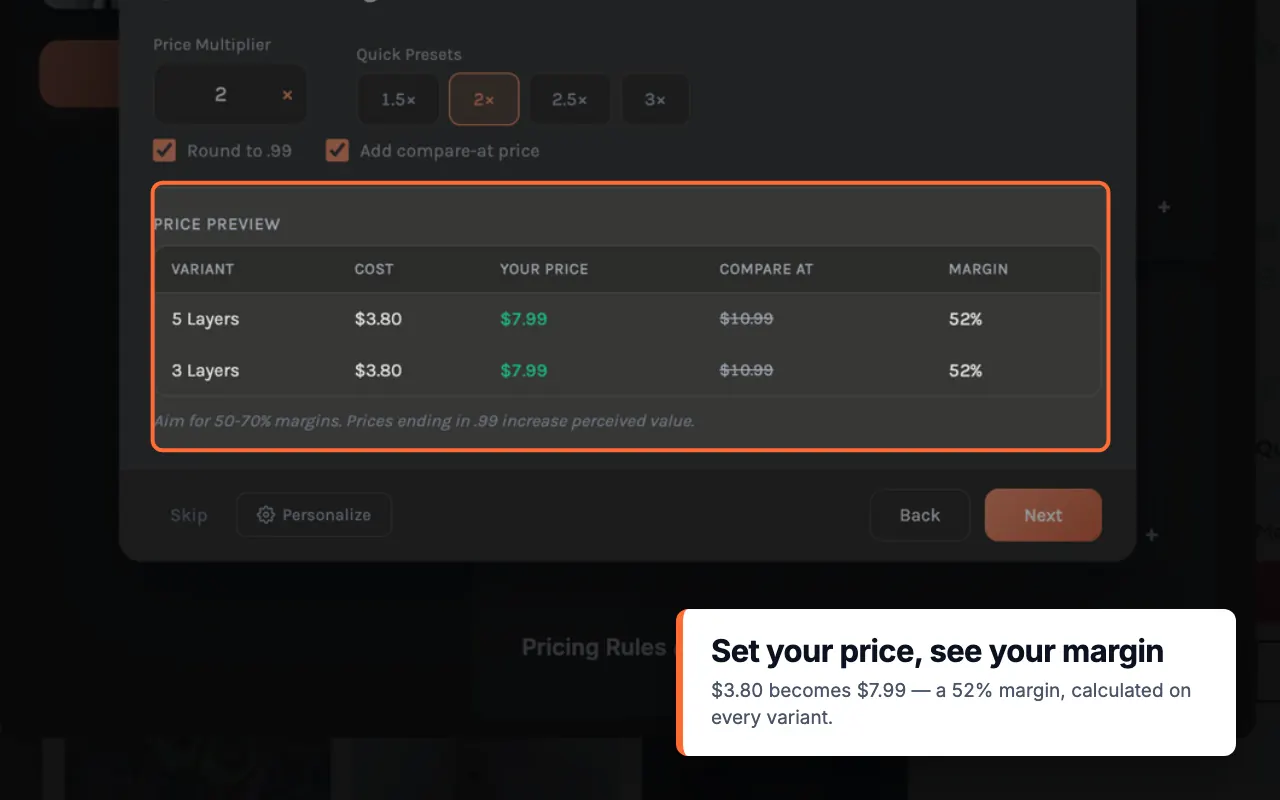
Importify offers three markup calculation methods. Not sure which markup keeps a healthy margin? You can work out the markup and margin you want first, then pick the method below:
1. Multiplier Price Markup:
This method multiplies the original price by a percentage. For example, a product that costs $15 with a multiplier of 200% would result in a selling price of $30.
Click here to see an example of multiplier markup
2. Fixed Price Markup:
This adds a set percentage to the product cost. If a product costs $100, applying a 25% fixed markup would result in a selling price of $125.
Click here to see an example of a fixed price markup
3. Price Markup by Amount:
This adds a fixed amount to the product cost. For a product costing $100, adding a $20 markup would set the selling price at $120.
Click here to see an example of markup by amount
Users can switch between these types using a dropdown menu in the settings.
4. Price Cents Value
this feature allows setting specific cents for product prices. For instance, if the calculated price after markup is $75.64, setting the price cents value to 99 would list the product at $75.99.
Click here to see an example of a price cent
5. Compare at Price
Turn on the Compare at Price switch to set a crossed-out price with its own markup (Multiplier, Fixed Percentage or Fixed Amount). It must be higher than your store price to show as a sale price.
- On WooCommerce, the compare-at price becomes the regular price and your price becomes the sale price.
- BigCommerce and Jumpseller don't receive a compare-at price.
6. Price Warnings
The import window updates the store price live as you change a rule. If a product would sell for $0.00, Importify blocks the import until you fix the pricing rule. If it would sell below its cost, you see the warning "This product would sell below its cost". You can still import it.
Here is a markup calculator to help you to calculate your profits https://www.omnicalculator.com/finance/markup
Default settings
Set these once. They apply to every product you import.
- Default Product Status (Active or Draft): in the extension, open Settings > General.
- Currency conversion (Automatic or Ask first, every plan): in the extension, open Settings > General.
- Enable Inventory Tracking and Default Stock Quantity (Shopify only): in the Importify dashboard, open Settings > Import Settings.
- Match supplier categories to your store (AliExpress products): in the Importify dashboard, open Settings > Import Settings.
Important:
To implement any changes, users need to save their modified settings. The effects of these settings may vary depending on the specific e-commerce platform being used.
Profit Calculations:
For precise profit calculations, markup calculators are available online. These tools can help in determining appropriate markup values based on desired profit margins.
Impact of Customization:
Adjusting these settings affects various aspects of using Importify:
- The pricing rules determine the final selling price of imported products.
Regular review of these settings may be necessary to ensure they align with current business practices and goals.