
How to import products to your WooCommerce store
Connect WooCommerce to Importify, open a supported supplier product page in Chrome, use the Importify extension or importer page, review the listing, then add it to WooCommerce.
On this page
WooCommerce imports work best when the store connection and product settings are ready first. After the product loads in Importify, treat the supplier listing as draft material that still needs cleanup before publishing.
Before you start
Install and activate WooCommerce on your WordPress site.
Install and activate the Importify WordPress plugin.
Connect your WooCommerce store to Importify from the Importify dashboard.
Use a desktop version of Chrome when importing from supplier pages with the Importify extension.
Choose a direct product page from a supplier Importify supports.
Import a product to WooCommerce
Open your Importify dashboard and confirm your WooCommerce store is connected.
Open a supported supplier website in Chrome.
Find the product you want to import, then open the product page.
Click the Importify Add button on the product page. For AliExpress products, you can also paste the URL into Product Finder in your Importify dashboard.

Review the imported product details in Importify: title, description, images, variants, pricing, tags, vendor, and product type.
Remove supplier text, duplicate images, variants you do not want to sell, and any pricing that does not match your rules.
Under Product Status, choose Active, or Draft to keep it hidden until you publish it.
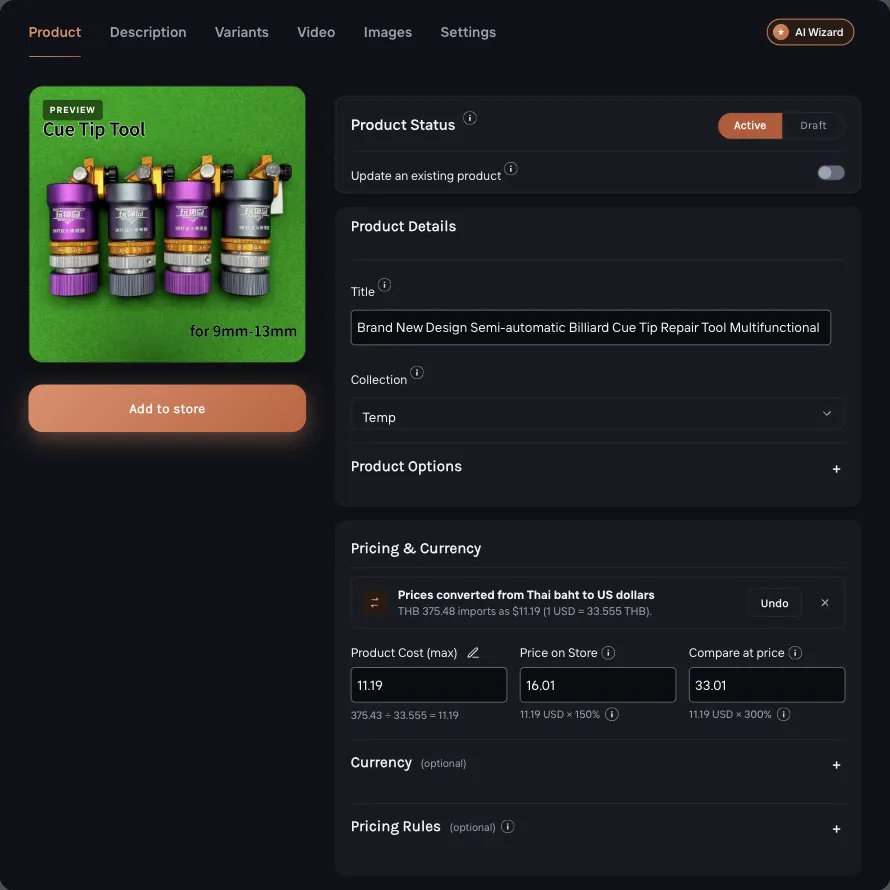
Click Add to store to send the product to WooCommerce.
Open WooCommerce and confirm the product appears under Products. Products import as Active unless you chose Draft.
If the import fails
| Symptom | What to check |
|---|---|
| The Importify button does not appear | Confirm the Importify Chrome extension is installed and enabled, then refresh the supplier page. |
| The product does not import | Confirm the supplier is supported and that you are on a direct product page. |
| WooCommerce connection fails | Check the WooCommerce connection guide: plugin active, HTTPS enabled, permalinks set correctly, and firewall rules allowing Importify. |
| The product imports with missing details | Reload the supplier page, retry the import, and edit the product manually before publishing if needed. |
After importing
Check the product in WooCommerce before publishing. Make sure the price, stock status, images, product type, and shipping details match how you want to sell it.
Frequently asked questions
Do I need the Importify WooCommerce plugin?
Yes. WooCommerce stores connect to Importify through the Importify WordPress plugin, so the plugin must be installed and active before you import products.
Do I need the Chrome extension?
Use the Chrome extension when importing directly from supplier product pages. For AliExpress, you can also paste the product URL into Product Finder in your Importify dashboard.
Can I edit the product before publishing it?
Yes. Review the title, description, images, variants, pricing, tags, and product type before adding the product to WooCommerce.
What if WooCommerce does not connect?
Check that WooCommerce and the Importify plugin are active, your store uses HTTPS, permalinks are not set to Plain, and your firewall allows Importify.