
How to import products to Shopify using the importer page
Paste an AliExpress product URL into Product Finder, click Load Product, review the listing, then click Add to your Store to add it to Shopify.
On this page
The importer page is useful when you already have the supplier product URL and do not want to start from the browser extension. Before sending the product to Shopify, review the listing as store copy, not just imported data.
If you are working from a phone, use Product Finder to paste an AliExpress product URL and complete the import in your mobile browser.
Before you start
Make sure your Shopify store is connected to Importify.
Use an AliExpress product page URL. For other suppliers, use the Importify Chrome extension on the product page. Category pages, search result pages, and home pages will not import as products.
Keep the product page open in another tab so you can compare variants, images, and prices before publishing.
Import a product from the importer page
See the URL-first workflow on a phone: pasting an AliExpress product link into Product Finder.
Open Product Finder in your Importify dashboard.
Open the AliExpress product page you want to import, then copy the full product URL from your browser.
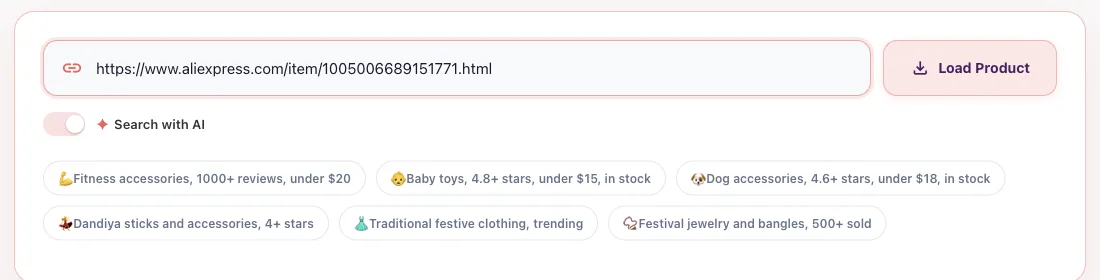
Paste the URL into the box that says Describe a product, or paste an AliExpress URL. The button changes to Load Product.
Click Load Product. Importify reads the product details and opens the editor.
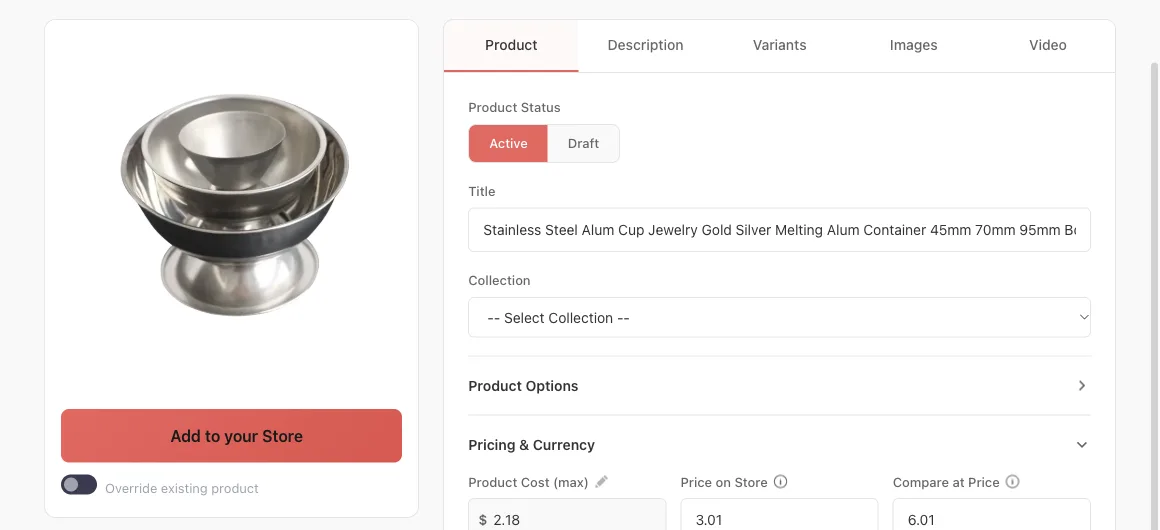
Review the imported title, description, images, variants, pricing, collection, vendor, product type, and tags. Remove anything you do not want to publish. Under Product Status, choose Active or Draft.
Click Add to your Store when the listing is ready.
Open Shopify and confirm the product appears in your products list. Review it once more before making it visible in your store.
If the product does not load
| Issue | What to check |
|---|---|
| The URL does not load | Copy the direct product page URL again. Search pages and collection pages will not import. |
| The link is not from AliExpress | Product Finder loads AliExpress links only. Use the Importify Chrome extension for other suppliers. |
| Images or variants look incomplete | Refresh the supplier page, reload the product in Importify, and compare the listing before publishing. |
| The product imports but needs cleanup | Edit the title, description, pricing, tags, variants, and images before making the product active in Shopify. |
Next step
After the product is in Shopify, check pricing rules, shipping settings, and the product status before you send traffic to the page.
Frequently asked questions
When should I use the importer page instead of the Chrome extension?
Use the importer page when you already have the supplier product URL copied. Use the Chrome extension when you are browsing supplier pages and want to send a product to Importify from the page itself.
Which supplier URLs can I paste into the importer page?
AliExpress product URLs. For Alibaba, Temu, Amazon and the other supported suppliers, use the Importify Chrome extension on the product page. Copy the product page itself, not a category or search page.
Can I edit the product before it goes to Shopify?
Yes. Review the imported title, description, images, variants, price, and other listing details before clicking Add to your Store.
What should I do if the product does not load?
Confirm the supplier is supported, copy the direct product URL again, refresh the page, and retry. If it still fails, use the Importify Chrome extension or contact support with the product URL.