
How to Use the Importify Chrome Extension for Shopify
Install the Importify Chrome extension, open a supported supplier product page, review product details, and add the product to Shopify.
On this page
- Short answer
- Before You Start
- Important Login Note For Taobao, Tmall, And 1688
- Step 1: Install The Importify Chrome Extension
- Step 2: Open A Supported Supplier Product Page
- Step 3: Click The Importify Add Button
- Step 4: Review The Product Before Importing
- Step 5: Add The Product To Shopify
- When To Use The Extension Instead Of The Dashboard Importer
- Common Issues
- Video Walkthrough
- Related Guides And References
- FAQ
Use the Chrome extension when you are browsing supplier sites and want to send a product into your Shopify workflow without copying the URL into Product Finder manually.
Use this guide when you want to import from a supplier website instead of pasting an AliExpress product URL into the Importify dashboard.
Before You Start
Make sure you have:
An active Shopify store connected to Importify.
Google Chrome installed.
An active Importify account and subscription.
A supplier product page from a supported marketplace.
You can see the current supplier list at Importify supported suppliers.
Important Login Note For Taobao, Tmall, And 1688
You only need to log in to the marketplace account before importing from Taobao, Tmall, and 1688. These marketplaces can hide product listing data until your marketplace session is active.
Use the same Chrome browser profile where the Importify extension is installed. For other supported marketplaces, marketplace login is not required for importing unless the supplier website itself blocks the page and asks you to sign in.
Step 1: Install The Importify Chrome Extension
Open the Importify Product Importer Chrome extension in the Chrome Web Store.
Click Add to Chrome.
Confirm by clicking Add extension.
Click the puzzle icon in Chrome and pin Importify so it is easy to access.
Step 2: Open A Supported Supplier Product Page
Go to a supported supplier website and open the exact product page you want to import. For example, you can open an AliExpress, Alibaba, Etsy, Amazon, Temu, Shein, CJdropshipping, or 1688 product page.
For Taobao, Tmall, and 1688, sign in first and reload the product page so the product title, images, variants, price, and description are visible.
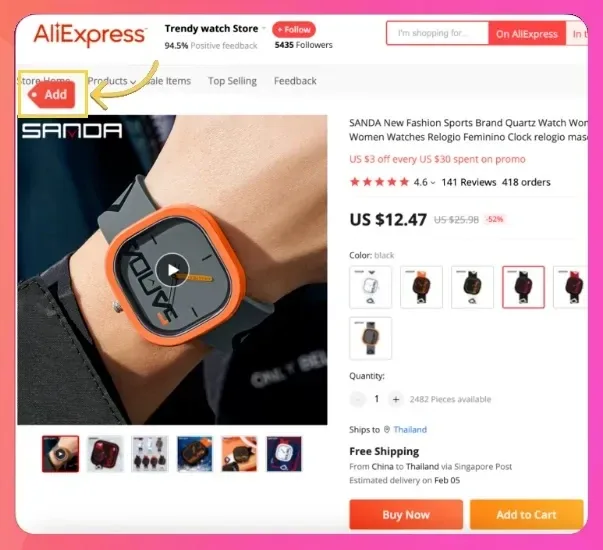
Step 3: Click The Importify Add Button
When the extension detects a supported product page, the Importify Add button appears on the page. Click Add to open the Importify import window.
If you do not see the button, check that:
The extension is installed and enabled.
You are using Chrome, not another browser.
You are on a supported product page, not a category page or search page.
You are logged in to Importify.
You are logged in to the supplier site if that marketplace requires it.
Step 4: Review The Product Before Importing
The import window lets you review and edit the product before sending it to Shopify. Check these areas before publishing:
Title: rewrite supplier titles so they are clear and customer-friendly.
Description: remove messy supplier text and explain the product benefits, specifications, and usage.
Images: remove duplicates, low-quality images, supplier branding, or irrelevant photos.
Variants: keep only the variants you want to sell and support.
Pricing: apply your pricing rules and confirm the final Shopify price.
Collections: choose the right Shopify collection if you want the product organized immediately.
Product Status: Active publishes the product right away. Choose Draft to review it in Shopify first. To make Draft the default, set Default Product Status in the extension's Settings > General.
Variant prices: some suppliers, including AliExpress, Etsy, Alibaba, Walmart, Lazada, Taobao, Tmall, Temu, 1688, DHgate and Shein, import a price for each variant. Most others import one price for all variants, so edit each variant's price before importing.
Currency: on every plan, Importify can convert supplier prices to your store's currency. Choose Automatic or Ask first under Currency conversion in the extension's Settings > General.
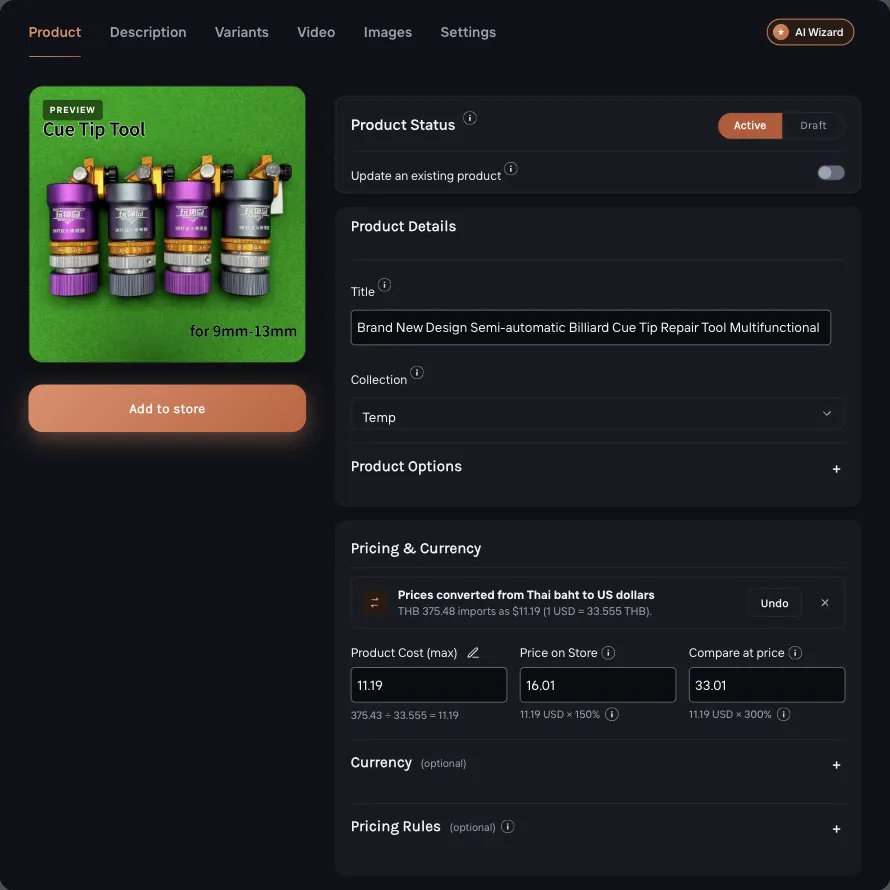
Step 5: Add The Product To Shopify
After reviewing the product, click Add to store. Importify sends the product title, description, images, variants, and pricing to Shopify.
After the import finishes, open your Shopify product list and check the product. If you imported it as Draft, set it to Active in Shopify when it looks right. Confirm that the price, variants, images, SEO title, and description look right for your store.
When To Use The Extension Instead Of The Dashboard Importer
Need to import from a phone? Watch the Product Finder alternative for an AliExpress product.
Use the Chrome extension when you are browsing supplier websites and want a fast one-click import flow. Use Product Finder in the Importify dashboard when you already have an AliExpress product URL copied (paste it into the search box and click Load Product), or when you prefer to browse products inside the dashboard. Product Finder accepts AliExpress URLs only.
Both workflows can add products to your store. The Chrome extension is usually faster while sourcing products directly on supplier websites.
Working from a phone? The extension does not run in a phone browser. Use Product Finder to import an AliExpress product from your phone instead.
Common Issues
The Add button does not appear
Make sure the extension is enabled, you are using Chrome, and you are on a supported product page. If the marketplace requires login, sign in and reload the page.
The product imports with missing images or variants
Reload the supplier page, confirm all variants are visible, and try importing again. Some supplier pages hide data until you select a variant or sign in.
The product price looks different from the supplier page
Supplier websites can show coupons, location pricing, app-only deals, or temporary discounts. Review your pricing rule and check the live supplier price before fulfilling orders.
The extension opens but asks me to log in
Log in to your Importify account in the same Chrome profile. If you manage multiple stores, confirm that the correct Shopify store is selected before adding the product.
Video Walkthrough
Watch the short walkthrough below to see the Chrome extension import flow.