
How to Manage Your Shopify Inventory When Using
Manage your Shopify inventory with Importify: set fixed stock on import, enable “Track quantity” in Shopify admin, or use top inventory apps for advanced control.
On this page
Here’s how you can manage your product inventory on Shopify when you’re sourcing via the Importify app, covering three main approaches:
1. Set a Fixed Inventory Amount in Importify
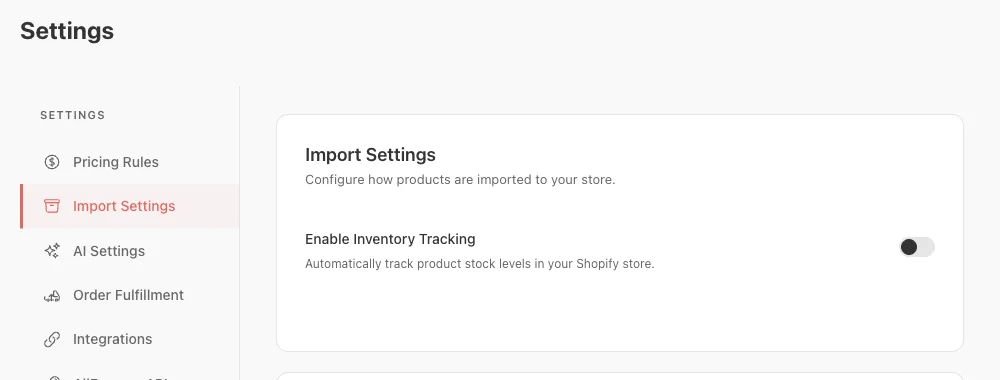
If you’d like every new import to default to the same stock level, you can configure this right in the Importify dashboard:
Open Importify Settings
In your store’s admin, navigate to Apps and open the Importify app, then click Settings.Go to Import Settings
Click the Import Settings tab.Enable Tracking & Enter Quantity
Turn on Enable Inventory Tracking, then enter the Default Stock Quantity that appears. Changes save automatically.
From now on, each product you import will inherit that stock level automatically .
Note: This only applies to new imports. To adjust existing products, you’ll need to update them manually (see Option 2).
2. Manage Inventory Directly in Shopify Admin
Note: By default, when you import products with Importify, Shopify’s inventory tracking remains disabled—you’ll need to turn follow the guide below.
Enable the "track inventory"
Select Your Product
On Product page, select specific variants (or use the top checkbox to select all on the page).Click Bulk edit
The top-right button changes from “…” to “Bulk edit” once products are selected.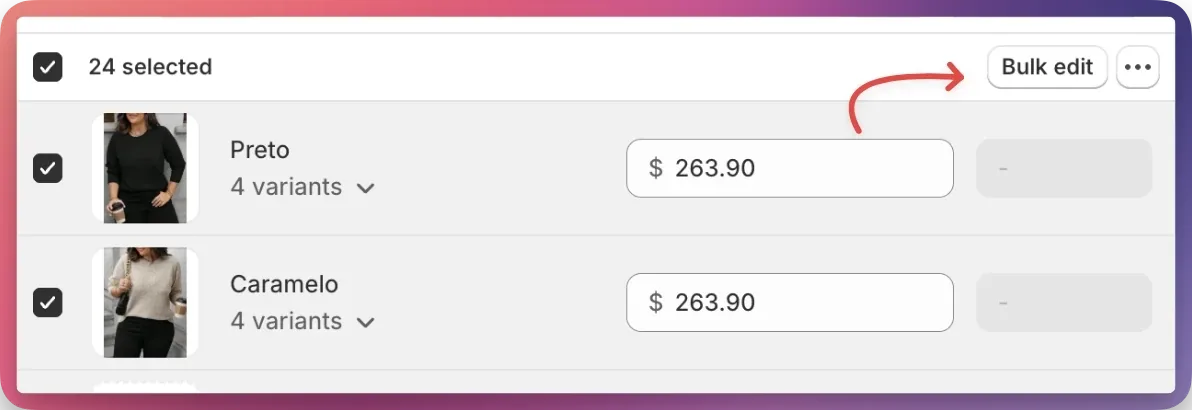
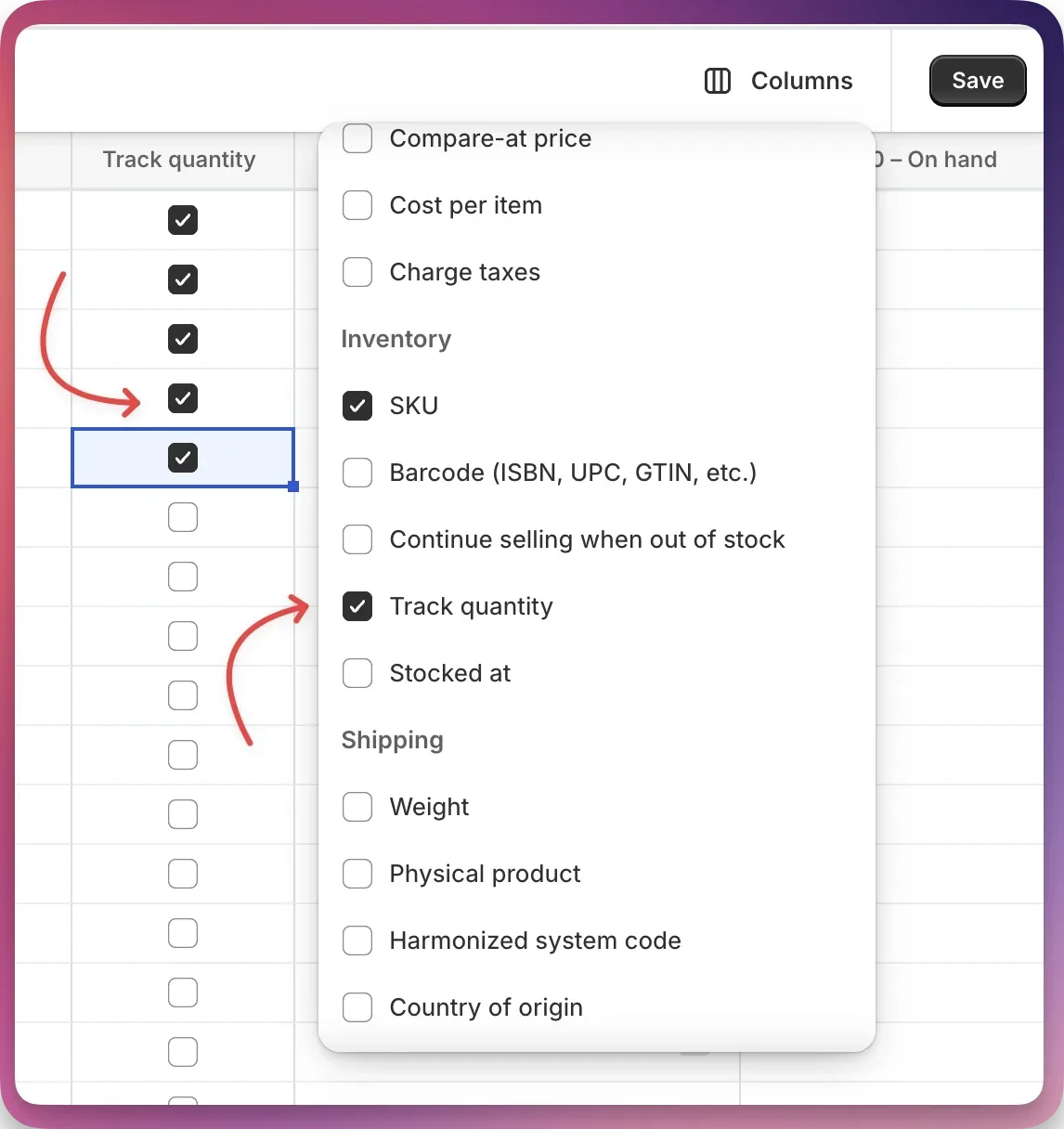
Add the “Track quantity” Column
In the bulk-editor toolbar, click Columns.
Under Inventory, check Track quantity.
Enable Tracking for Every Variant
You’ll now see a “Track quantity” column with checkboxes.
Click the header checkbox at the top of that column to select all rows.
Click any one of the selected checkboxes to toggle all to “on.”
Save Your Changes
Click Save in the top-right of the bulk editor.
3. Use Specialized Shopify Inventory Apps
For more advanced inventory workflows—like forecasting, low-stock alerts, or multi-location forecasting—you can leverage third-party Shopify apps. Importify doesn’t sync inventory in real time, so a dedicated app can fill the gap:
Prediko Inventory Management
AI Inventory Management & Planner. Forecasting, Multi-Location Restocking, Purchase Orders, Reports.Assisty Inventory Management
AI Inventory Management & Planner. Stock Replenishment for: Multi-stores, multi-locations, BundlesEasyEcom Inventory Management
Multi-Channel Inventory management
Tip: When evaluating apps, look for features like automatic reorder points, purchase-order creation, and multi-location support. Your Shopify admin also has a built-in Location management feature for allocating stock across warehouses or retail outlets .
Choosing the Right Approach
Simplicity: Use Importify’s fixed-inventory setting if you’re comfortable with a flat stock level for all variants.
Control: Edit quantities manually in Shopify for precision on each product or variant.
Scalability: Adopt a third-party inventory app when you need forecasting, automation, or multi-location support—especially critical as your catalog and order volume grow .
Feel free to mix and match these methods: for example, set a sensible default in Importify, then fine-tune high-volume SKUs directly in Shopify or via an inventory app.
Related Guides And References
- Shopify inventory tracking
- Does Importify sync inventory?
- How to connect existing products to new suppliers