
Getting started with Importify on Jumpseller
Install Importify from Jumpseller, approve access, choose a plan through PayPro Global, import one product, and review it in your Jumpseller catalog.
On this page
- Short answer
- Before you start
- Install Importify from Jumpseller
- Choose your Jumpseller plan
- Add your first product with Product Finder
- Import from a supplier page with the extension
- Review the product in Jumpseller
- Use AI features when the listing needs cleanup
- Manage your first Jumpseller order
- Next steps
- FAQ
Before you start
Use a Jumpseller account that can install apps and manage products. You also need Chrome or Edge if you want to import directly from supplier product pages with the browser extension.
An active Jumpseller store, including a trial store.
Permission to install apps from the Jumpseller admin panel.
Chrome or Edge for the Importify extension, optional if you use Product Finder inside Importify.
A supplier product you want to test, or a niche you want to search inside Product Finder.
Install Importify from Jumpseller
Install the app from the Jumpseller store you want to connect. If you manage more than one store, confirm the store name before approving access.
Sign in to your Jumpseller admin dashboard.
Open the Apps Gallery from your admin panel.
Find Importify and start the installation.
Review the permissions Jumpseller shows, then approve the connection.
After approval, Jumpseller redirects you to Importify. Your Importify account is created and linked to that store.
Choose your Jumpseller plan
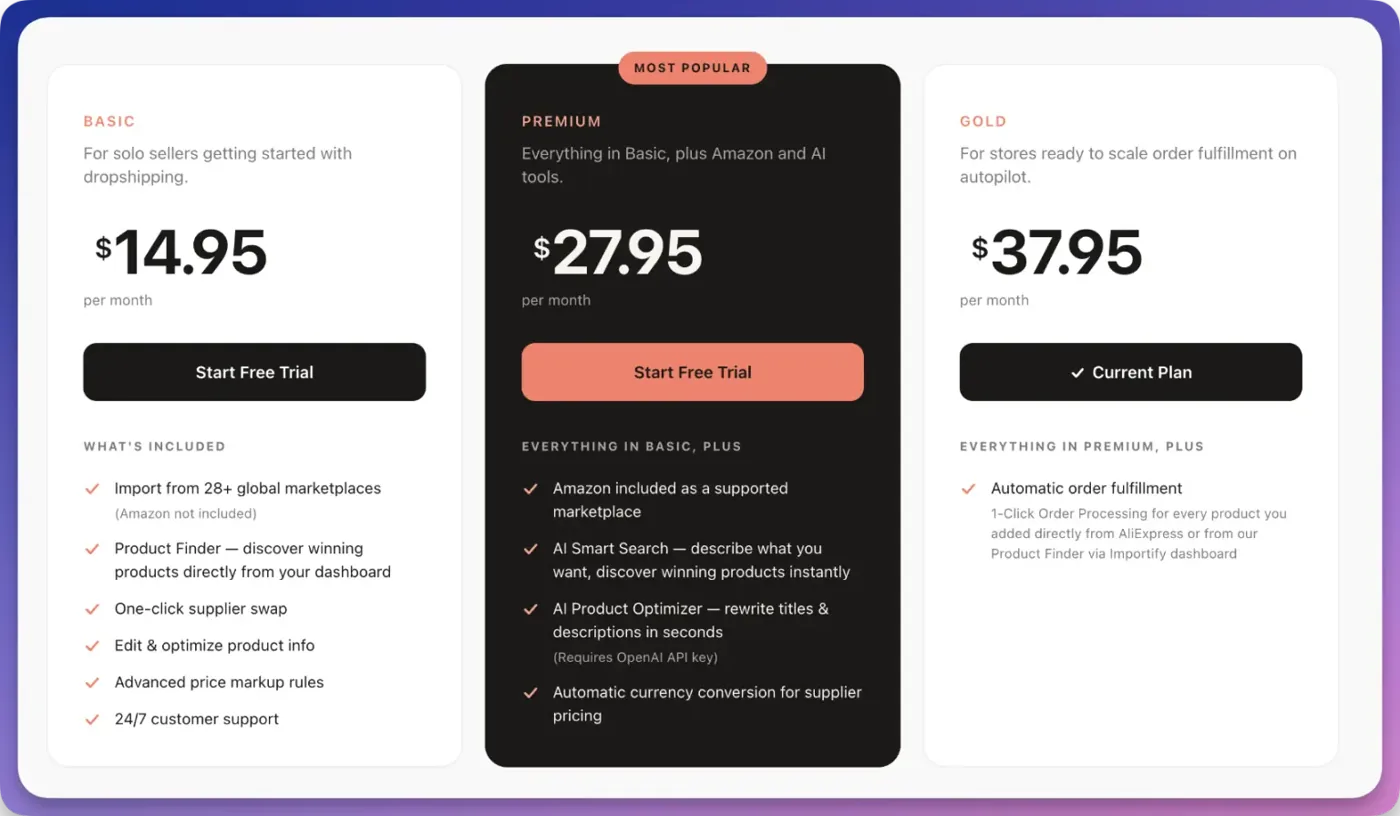
Pick the plan around the workflow you actually need. Basic starts at $14.95/month for testing products, Premium starts at $27.95/month and adds Amazon plus AI features, and Gold starts at $37.95/month and adds AliExpress order fulfillment.
Jumpseller billing uses PayPro Global. You get a 1-day free trial on every Importify plan, and checkout shows the charge details before you start.
Add your first product with Product Finder
See Product Finder in action: describing a product in plain language and reviewing the ranked matches.
Start with Product Finder if you do not already have a supplier page in mind. It is built into Importify, so you can search products, open the editor, and send a cleaned listing to Jumpseller without installing the extension first.
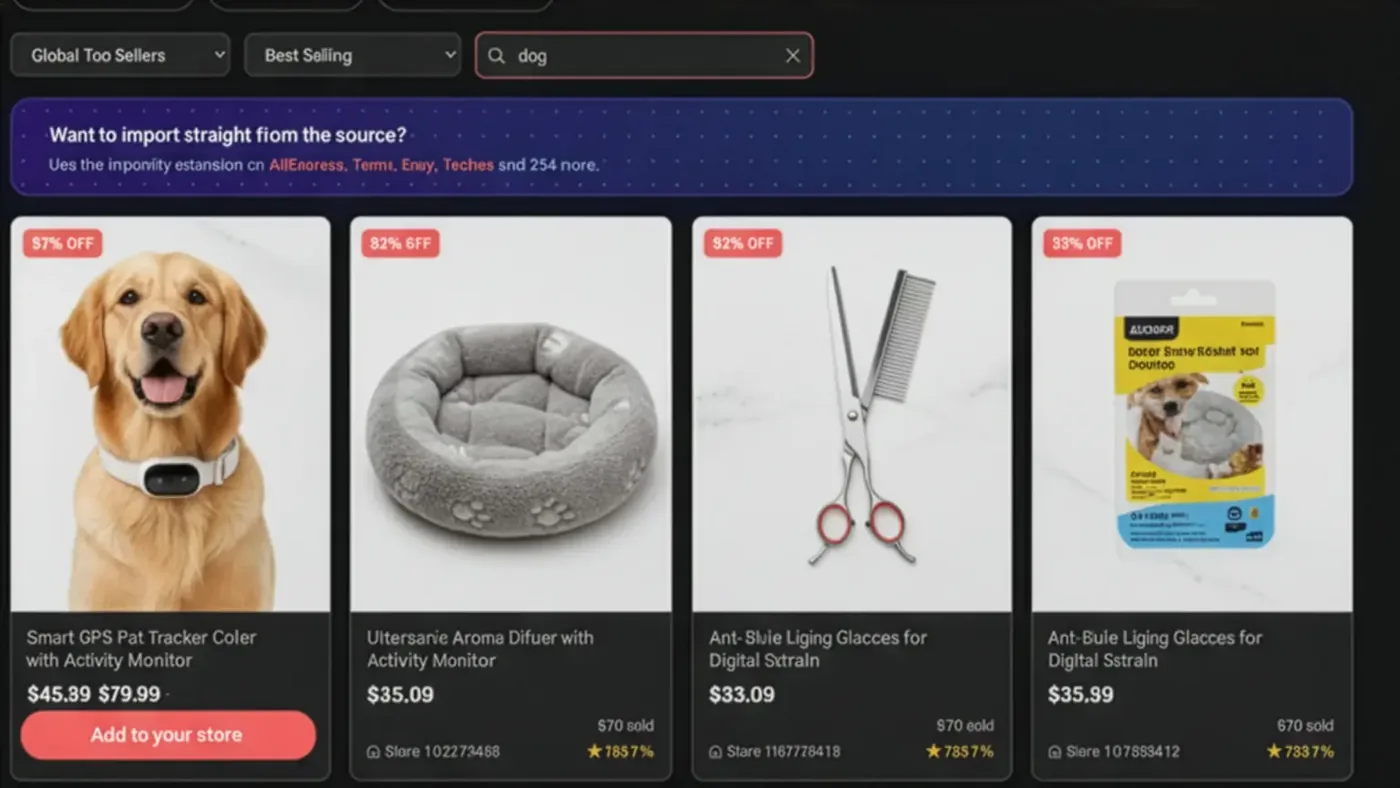
Open Product Finder in the Importify dashboard.
Search by keyword, for example, yoga mat or LED desk lamp.
Pick a category, then narrow the results with the sort menu (for example Best Selling), Ship From, Rating, and the price range.
Click Add to your store on a product you want to test. This opens the editor.
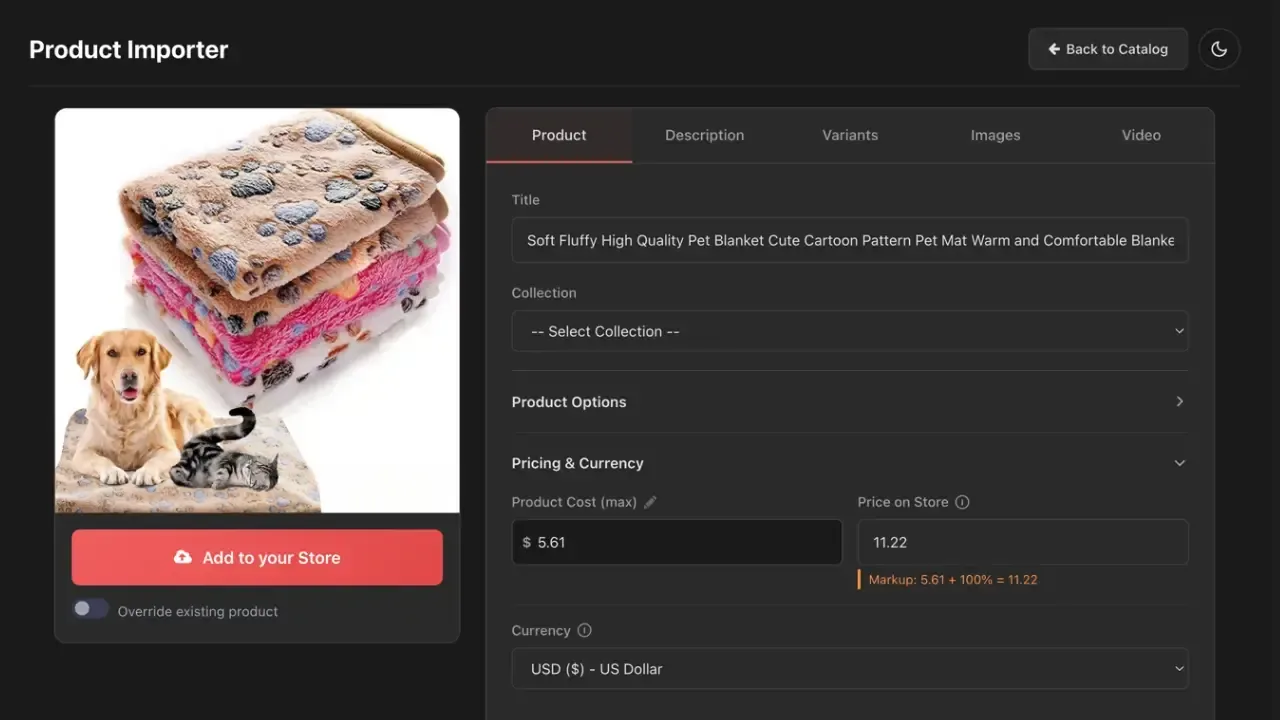
Edit the title, description, images, variants, tags, product type, and price.
Use your pricing rule so markup is applied consistently.
Click Add to your Store to send the product to Jumpseller.
Already have an AliExpress product URL? Paste it into the search box and click Load Product to open it in the editor. Product Finder accepts AliExpress URLs only, so use the extension for other suppliers.
Import from a supplier page with the extension
Use the extension when you already found a product on a supported supplier site. It lets you open the product page, click the Importify button, edit the listing, and push it to Jumpseller without copying product data by hand.
Install the Importify Chrome extension.
Pin the Importify icon in your browser toolbar.
Open a product page from a supported supplier. You can review supported sites at Importify suppliers.
Click the Importify icon or the Add button on the supplier page.
Edit the product title, description, images, variants, and prices in the Importify modal.
Click Add to store.
Check the product before you repeat the workflow. One careful test prevents a messy catalog.
Review the product in Jumpseller
Open the imported product in Jumpseller before you publish more products. Look at the product name, image order, price, variants, categories, shipping settings, and description formatting from the storefront side, not only inside the admin.
Open your Jumpseller admin dashboard.
Go to your product list.
Open the product you imported with Importify.
Confirm the title, images, variants, pricing, and product options.
Fix anything that does not match your store before importing more products.
Jumpseller note: compare-at prices are not sent to Jumpseller. Jumpseller takes up to 100 variants per product. If a supplier product has more, the extension tells you that only the first 100 will import.
Use AI features when the listing needs cleanup
Use the AI Product Optimizer on Premium or Gold (Improve, Translate and Personalize in the description toolbar) when supplier copy sounds messy, too generic, or too close to the original marketplace listing. Importify can rewrite product titles and descriptions, translate content into 20+ languages, and generate customer-focused FAQs without requiring your own OpenAI API key.
Review before publishing. The goal is product copy that sounds like your store, not the supplier page.
Manage your first Jumpseller order
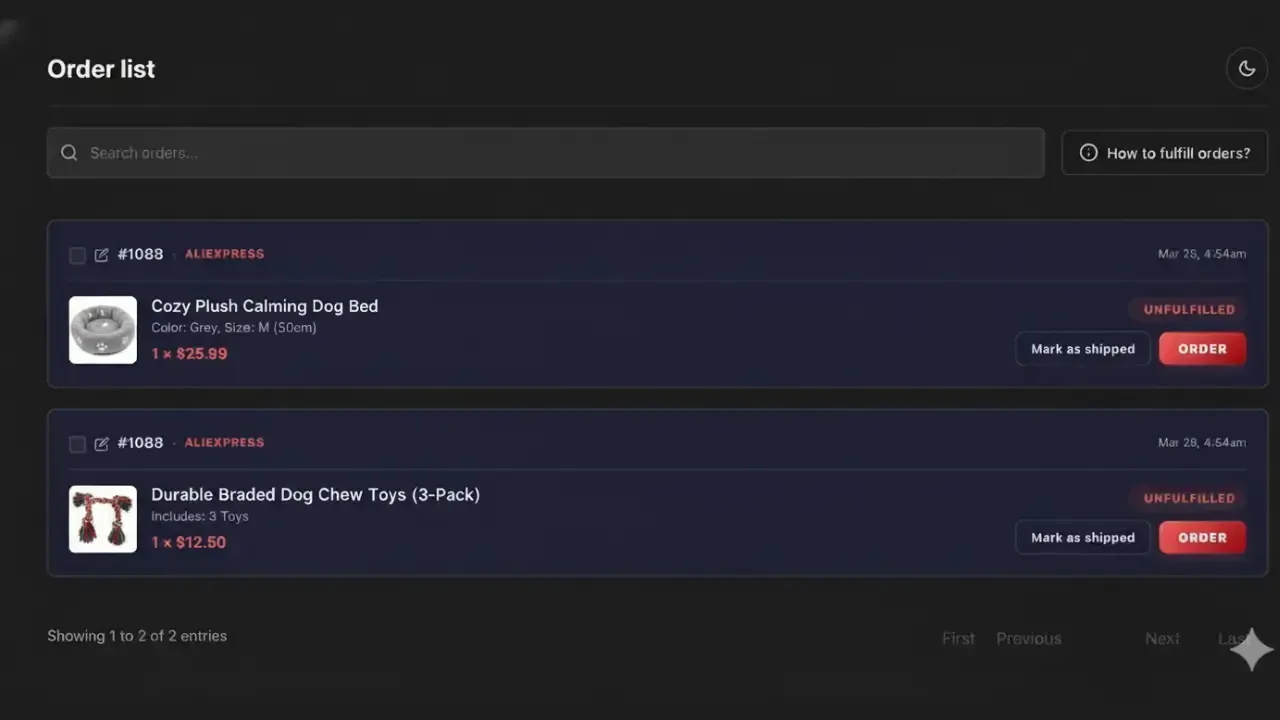
Open Importify Orders when a customer buys an imported product. Every Jumpseller order appears next to its supplier product, so you can find the item faster and keep fulfillment work in one place.
Honest note: full auto-ordering is AliExpress-only. For AliExpress products on the Gold plan, Importify can prepare checkout by selecting the item and variant, filling customer shipping details, and opening AliExpress checkout for your review and payment.
Open the order inside Importify.
Click Order for an AliExpress product on the Gold plan, or open the supplier link for other suppliers.
Review the supplier checkout details before payment.
When the supplier ships, add or confirm the tracking number in your store.
Next steps
Frequently asked questions
Can I use Importify on Jumpseller?
Yes. Importify supports Jumpseller, along with Shopify, Wix, WooCommerce, and BigCommerce.
How is Importify billed on Jumpseller?
Jumpseller billing uses PayPro Global, and Importify offers a 1-day free trial on every plan.
Which plan should I start with on Jumpseller?
Basic is enough for testing most suppliers. Choose Premium if you need Amazon or AI features, and choose Gold if you need AliExpress order fulfillment.
Does Importify automate every Jumpseller supplier order?
No. Full order automation is AliExpress-only. For other suppliers, Importify keeps the product and order workflow organized, but you may place the supplier order manually.