
How to enable cookies on chrome?
Enable cookies in Chrome so Importify can keep your dashboard session active and complete product import actions in the browser.
In order to use the import feature or access the Importify dashboard you need to make sure your browser does allow cookies to be saved.
Cookies can be blocked from multiple reasons, Chrome browser settings, block extensions, firewall settings and these are only part of the reasons.
In this guide I will guide you on how to enable the cookies in your browser.
On your computer, open Chrome.
Open a new tab and paste this URL -→ chrome://settings/content/cookies
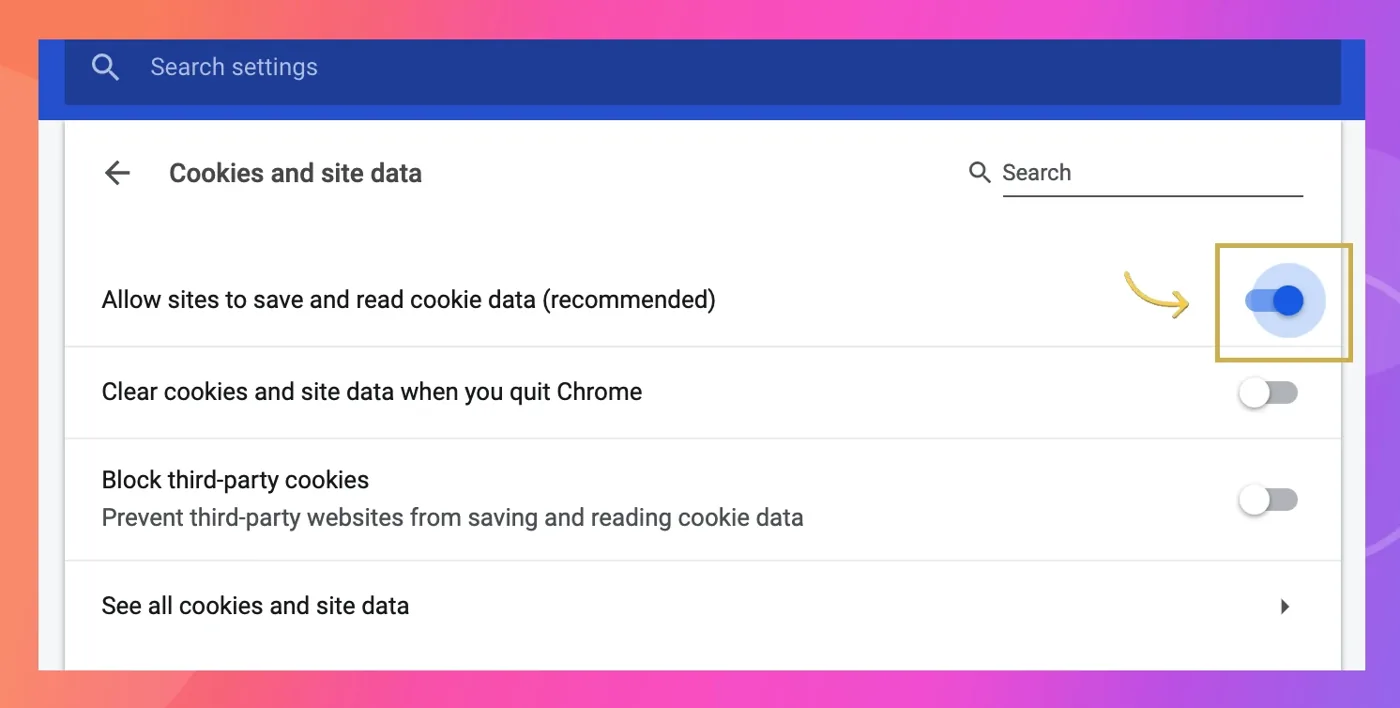
From here, Turn on cookies: by turn on the "Blocked" switch.
Instead, It should show "Allow sites to save and read cookie data"
Make sure your settings are like the image below
* Still having cookies issue?
Open a new tab and paste this URL chrome://extensions/
This action will open your installed chrome extensions list, check which extensions might block cookies and turn them off.