
I cannot import a product. What should I check next?
If a product will not import, check whether you are using Product Finder on mobile or the Chrome extension on desktop, then confirm the product URL, plan, and store connection.
On this page
Import failures usually come from the browser, supplier page, extension, plan access, or store connection. Work through the checks in order so you can isolate the failing step before contacting support.
Trying to import from a phone? Watch the mobile Product Finder workflow before troubleshooting the Chrome extension.
Quick checklist
Not sure whether the supplier page is supported? See what the extension shows on an unsupported site.
Use a desktop or laptop for extension imports. On a phone, open Product Finder and use the mobile AliExpress import workflow.
Confirm you are on a direct supplier product page, not a category, cart, search, or home page.
Confirm the supplier is supported by Importify.
On Taobao, Tmall or 1688, sign in to the marketplace in the same Chrome profile, then reload the product page. Avoid retrying the import many times in a row on these sites.
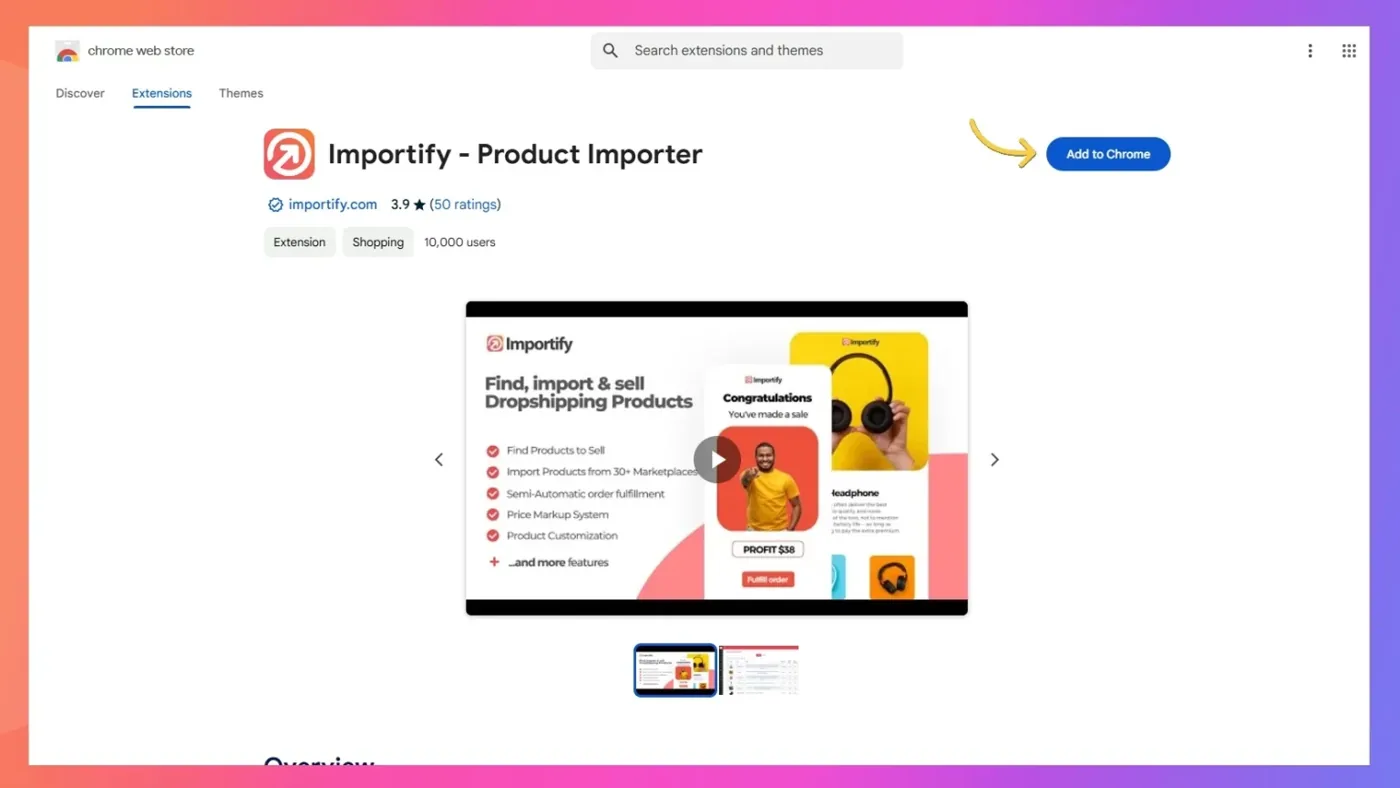
Update or reinstall the Importify Chrome extension from the Chrome Web Store.
Log in to Importify and confirm your store is connected.
Check your plan from the Importify dashboard.
If the import window says "Only the first N of M variants will be imported", your store platform's limit applies: Shopify 2048, Wix 1000, BigCommerce 600, WooCommerce 500 and Jumpseller 100 variants per product. Importify imports the first N. See how to manage product variants.
Disable other Chrome extensions temporarily and test again.
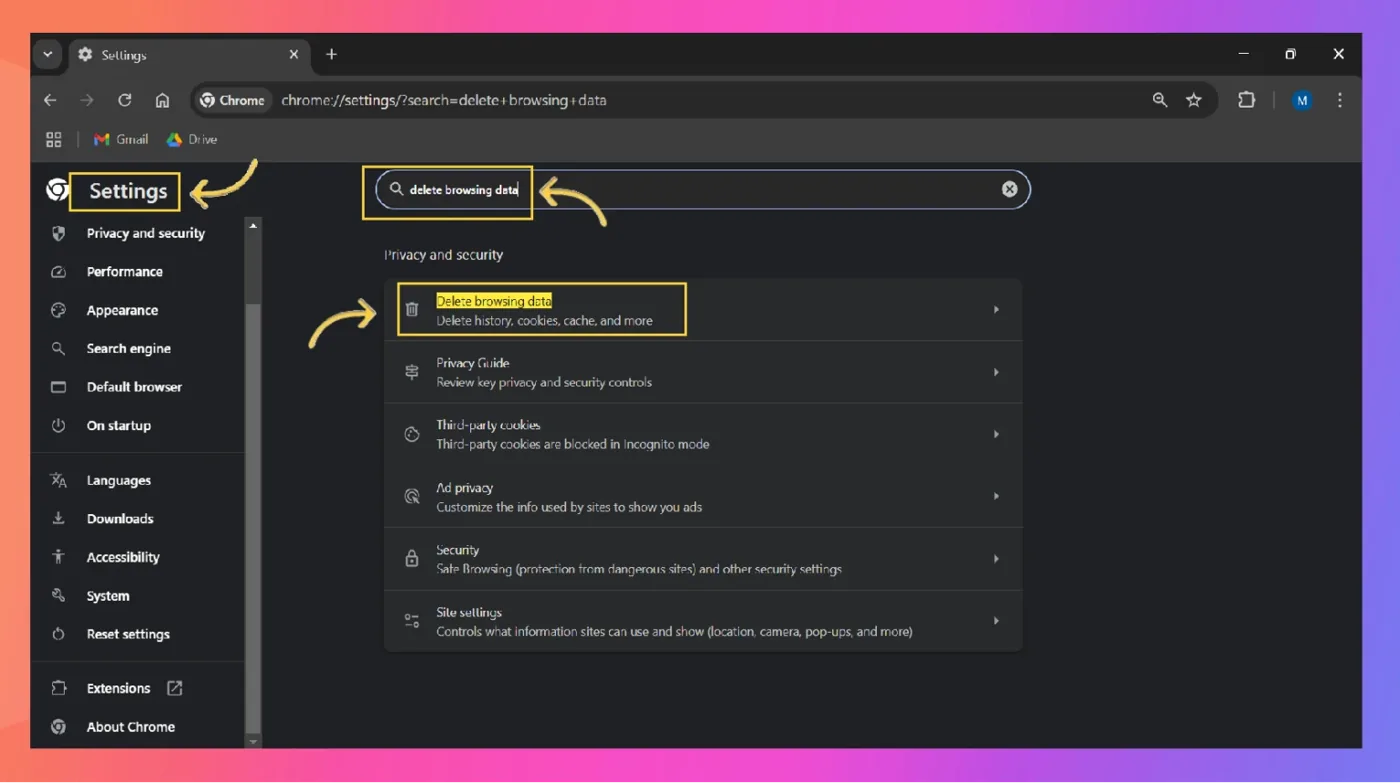
Clear cookies and cached files, restart Chrome, and retry the import.
Clear Chrome cache and cookies
Open
chrome://settings/privacyin Chrome.Open Delete browsing data.
Choose All time.
Select Cookies and other site data and Cached images and files.
Click Clear data, then close and reopen Chrome.
Extra checks for WooCommerce
Make sure WooCommerce is installed and active.
Make sure the Importify WordPress plugin is installed and active.
Use HTTPS with a valid SSL certificate.
Go to Settings > Permalinks and use Post name, not Plain.
In Importify, reconnect from API settings using your exact public store URL. If needed, test the
wwwand non-wwwversions.If you use Wordfence, Jetpack, Sucuri, Cloudflare, or another firewall, allow Importify's IP:
162.243.171.163.Ask your host to allow the same IP and check whether server security is blocking external requests.
When to contact support
If the product still will not import after these checks, contact Importify support with your store email, platform, supplier product URL, a screenshot or screen recording, and the exact error message. That gives support enough context to reproduce the issue.
Frequently asked questions
Can I import from mobile?
Yes. Open Product Finder in your phone browser to browse products or paste a direct AliExpress product URL, then review and import the product from the mobile dashboard. Chrome extension imports still require desktop Chrome.
What should I check first?
Start with the supplier page, Chrome extension, plan status, and store connection. Most import failures come from one of those checks.
Can another Chrome extension block Importify?
Yes. Disable other extensions temporarily, leave Importify enabled, refresh the supplier page, and test again.
What should I send support?
Send your store email, platform, supplier product URL, screenshot or screen recording, and the exact error message.