
How to import products from a CSV file
CSV Product Import brings many products into your store at once from a CSV file, such as a Shopify, AutoDS, DSers, CJDropshipping or Zendrop export.
On this page
CSV Product Import brings many products into your store at once from a CSV file, such as an export from Shopify, AutoDS, DSers, CJDropshipping or Zendrop. Upload the file, match its columns, set your pricing rules, check the preview and import. It's in the Importify Chrome extension, on every plan.
Before you start
The Importify Chrome extension is installed and you're logged in to your Importify account.
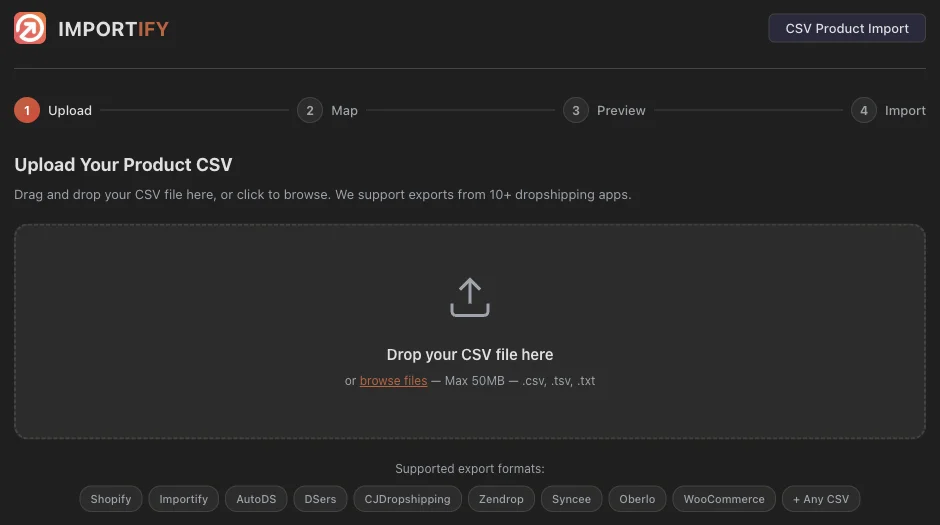
Your file is a .csv, .tsv or .txt file, up to 50MB, with column names in the first row.
Your file has at least a product title column. Prices, images, descriptions, variants and supplier product URLs make the import richer.
Import products from a CSV file
Open CSV Product Import. Click the Importify icon in your Chrome toolbar, open the CSV Import tab and click Open CSV Import.
Upload your file. Drag it onto the page or click browse files.
Map your columns. Tell Importify which column holds the title, price, images and the other product and variant fields. Only Product Title is required. Click Continue.
Choose where the data comes from. If your file has product URLs from supported suppliers, click Fetch Full Data from URLs to read more images, variants and descriptions from the supplier pages, or Use CSV Data Only. Without supplier URLs, Importify uses the data in your file.
Set your pricing rules. Pick the Store Price Markup (Multiplier, Fixed Percentage or Fixed Amount), the Compare at Price markup and a Cents Adjustment. They apply to every product in the file.
Preview. Click a product to check its details. Deselect anything you don't want, then click Import Selected.
Click Import to Store. When it finishes you'll see Import Complete!
Tips for a clean import
Fetching takes time. With Fetch Full Data from URLs, Importify opens each supplier page to read it. Keep Chrome open until it finishes.
Some suppliers need a login. A few marketplaces show full product details only when you're signed in. If data is missing, sign in to that supplier and fetch again, or import that product from its page with the Add button.
Check prices after import. Products import with the data available, and you can edit them in your store afterwards.
If something looks wrong
| Message | What to do |
|---|---|
| "No column headers found" | Make sure the first row of the file holds the column names. |
| "Please map at least the Product Title column" | Pick the column that holds your product names in the Map step. |
| "No supported supplier URLs found" | Your file has no product links from suppliers Importify supports. Continue with the data in your file. |
| "This file is too large" | Split the file into parts under 50MB. |
Related Guides And References
- How to customize pricing rules and default settings
- Which suppliers import a different price for each variant
- Supported suppliers
Frequently asked questions
Can I import a Shopify product export?
Yes. CSV Product Import accepts Shopify exports and exports from AutoDS, DSers, CJDropshipping, Zendrop and other apps.
Which plan do I need for CSV import?
Any plan. CSV Product Import is in the Importify Chrome extension.