
How to Manage and Split Product Variants
Use the Variants tab to keep selected options in one listing or split them into separate store products with their own pages, URLs, images, and prices.
On this page
Before you manage or split variants
Open the exact supplier product page you want to import.
Check the available options, such as color, size, capacity, or bundle.
Confirm the supplier price and images for every variant you plan to sell.
Decide whether shoppers should choose an option on one product page or visit a separate page for each option.
Variant Splitting is available on every Importify plan for Shopify, Wix, WooCommerce, and Jumpseller. It is not available for BigCommerce.
Variant prices by supplier
Importify imports a separate price for each variant from suppliers including AliExpress, Etsy, Alibaba, Walmart, Lazada, Taobao, Tmall, Temu, 1688, DHgate and Shein. Other suppliers, such as CJdropshipping, import one price for all variants. Variants from Temu, 1688, DHgate, Taobao, Tmall, Shein and Alibaba also get the supplier's SKU ID as their SKU. You can edit each variant's price in the Variants tab before you import.
Choose the right variant setup
| Setup | What it creates | Use it when |
|---|---|---|
| Keep one product | One product page with all selected options. | Shoppers should choose a size, color, or other option from the same listing. |
| Select variants | One product page containing only the variants you keep. | You do not want to sell every supplier option. |
| Separate to Variants | One product page where each option has its own SKU and barcode. | You want separate identifiers while keeping a single listing. |
| Split into Products | A separate product page and URL for every selected variant. | Each color or style needs its own title, price, images, URL, SEO, or advertising destination. |
How to keep selected variants in one product
Open the supplier product page and click the Importify Add button.
Open the Variants tab in the product editor.
Keep the standard one-product setup.
Uncheck any size, color, or option you do not want to import.
Review each remaining variant’s title, price, compare-at price, SKU, barcode, and image where available.
Click Add to store, then check the product page and its option selector in your store.
How to split variants into separate products
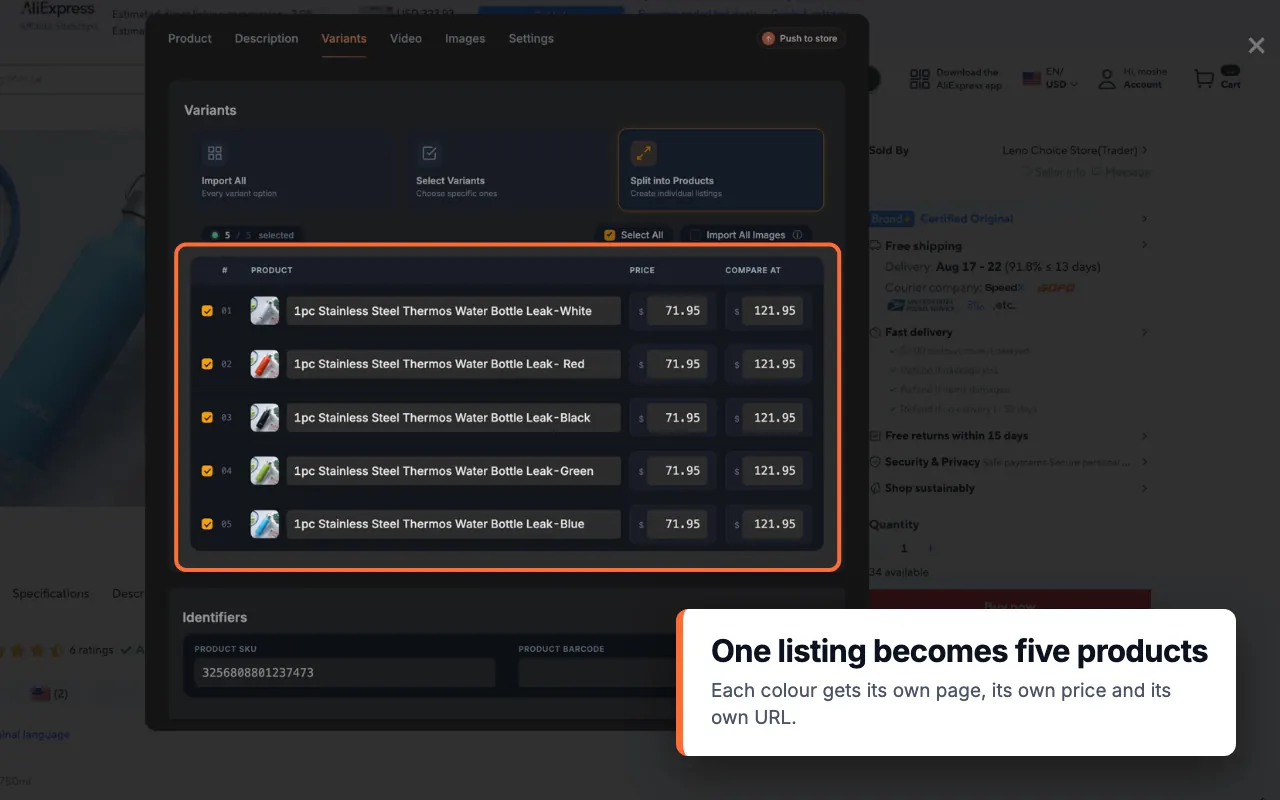
Open the product in Importify. Click Add on the supported supplier product page.
Open the Variants tab. Importify displays the variants available on the supplier listing.
Choose Split into Products. Each selected variant becomes an individual store product.
Select only the variants you want. Uncheck colors, sizes, or other options you do not plan to sell.
Edit each product. Review its title, price, compare-at price, and other editable fields.
Choose how images should be handled. Leave Import All Images off when each split product should receive only its own variant images. Turn it on when every split product should receive the full image gallery.
Add the products to your store. Importify creates a separate product for every selected variant.
Open every result. Use the links in the success screen or your store admin to check each product’s URL, images, title, variants, and price.
Translating variant names? Watch how the Variants tab translates attributes and values separately.
What does Import All Images do?
The Import All Images setting controls the gallery on the products created by Variant Splitting:
Off: each split product receives the images associated with its own variant.
On: every split product receives the full image gallery from the supplier listing.
Check the storefront after importing. Supplier image assignments can be inconsistent, so remove any image that shows the wrong color or option.
Troubleshoot product variants
| Problem | What to check |
|---|---|
| Split into Products is missing | Variant Splitting is not available for every source or product, and it is not supported on BigCommerce. Confirm your store platform and try another supported supplier listing. |
| A split product has the wrong images | Check whether Import All Images was enabled. Edit the gallery in your store admin and keep only the images that match that product. |
| Too many products were created | Before importing, uncheck the variants you do not want. If the products already exist, manage or remove them from your store admin. |
| The price differs between variants | Review the supplier cost and the editable price for every selected variant. Do not assume all options have the same supplier price. |
| Only some variants were imported | Each store platform caps variants per product: Shopify 2048, Wix 1000, BigCommerce 600, WooCommerce 500, Jumpseller 100. When a listing has more, the import window says "Only the first N of M variants will be imported", and Importify imports the first N. |
| Variant names are in another language | Use Importify’s translation tools on Premium or Gold, then review both the attribute name and each value before importing. |
Related guides
Frequently asked questions
What is the difference between variants and split products?
Variants stay inside one product listing and share one product page. Split products create a separate store product and URL for every selected variant.
Which plans include Variant Splitting?
Variant Splitting is available on every Importify plan.
Which store platforms support Variant Splitting?
Variant Splitting works with Shopify, Wix, WooCommerce, and Jumpseller. It is not available for BigCommerce.
What does Import All Images do when splitting variants?
When Import All Images is off, each split product receives only its own variant images. When it is on, every split product receives the full image gallery.
Can I split only some of the variants?
Yes. Uncheck the colors, sizes, or other options you do not want before adding the products to your store.
Why is Split into Products missing?
The option is not available for every supplier source or product, and it is not supported on BigCommerce. Confirm your platform and try another supported supplier listing.