
How to Translate Product Content With Importify
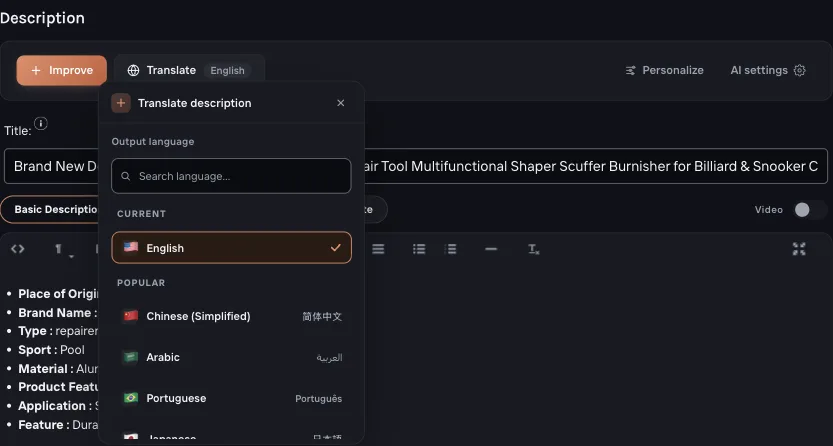
Click the Importify Add button, open the Description tab, click Translate, choose the output language, review the translated content, and add the product to your store.
On this page
Use Importify AI translation when supplier content is written in a different language, or when you want your imported product page to match your store language before publishing.
The translation flow happens inside the Importify import window. You can translate the product title, description, variant names, and product details where available, then review the result before adding the product to your store.
AI translation is part of Importify's AI feature set on Premium and Gold plans. Users do not need to connect their own OpenAI API key.
Before you start
Make sure Importify is installed on your store. If you are importing from a supplier product page, install the Importify Product Importer Chrome extension so the Add button is available on the page.
- Plan access: Premium or Gold for AI translation.
- Product source: a supported supplier page or an imported product opened in the Importify editor.
For Taobao, Tmall, and 1688, sign in to the marketplace before importing. Those sites can hide product details, prices, variants, or shipping options until your marketplace session is active.
Translate product content with Importify AI
Use this flow after you open the product in the Importify import window.
Open the supplier product page
Go to the product you want to import, then click the Importify Add button.
Open the Description tab
In the Importify window, select the Description tab. This is where the imported product text appears before you add it to your store.
Click Translate
Click Translate and open the output-language menu.
Choose the output language
Select the language you want the product content translated into. Importify supports 20+ languages, including right-to-left output for Hebrew and Arabic.
Review and edit the result
Read the translated title, description, variant names, and product details. Fix anything that needs a human edit before importing.
Add the product to your store
When the translated listing is ready, add the product to your store or save it as a draft if you want to review it inside your ecommerce platform first.
When should you use Translate instead of Improve?
Importify AI can help with different content jobs. Use Translate when the main problem is language. Use the AI Product Optimizer when you want to rewrite the listing for brand voice, benefits, audience, FAQ, or trust content.
| Task | Use Translate | Use AI Product Optimizer |
|---|---|---|
| Change language | Best fit | Can also produce localized copy when optimization is needed |
| Keep the source structure | Best fit | May rewrite and restructure the listing |
| Rewrite for brand voice | Limited to translation review and manual edits | Best fit |
| Add FAQ or trust content | No | Best fit |
| Prepare a full sales-focused product page | Useful first step for non-English content | Best fit |
Tips for cleaner translations
- Check product specs against the live supplier page. Translation can help wording, but you still need to verify sizes, materials, quantities, compatibility, and measurements.
- Review variant names carefully. Color, size, plug type, model, and bundle names affect what the customer orders.
- Edit for your store voice. A literal translation may be accurate but still feel awkward. Tighten the wording before publishing.
- Use draft mode for complex products. If a product has many variants, charts, or technical specs, import it as a draft and review it inside your ecommerce platform.