
How to update your Importify payment method
Update your Importify payment method from the billing area for the platform that manages your subscription.
Use the account that created the charge. Shopify and Wix changes happen in their own account settings, while WooCommerce, BigCommerce and Jumpseller customers use PayPro Global.
Access Your Billing Settings
For Shopify users
Log in to your Shopify admin panel.
Go to "Settings" and then "Billing".
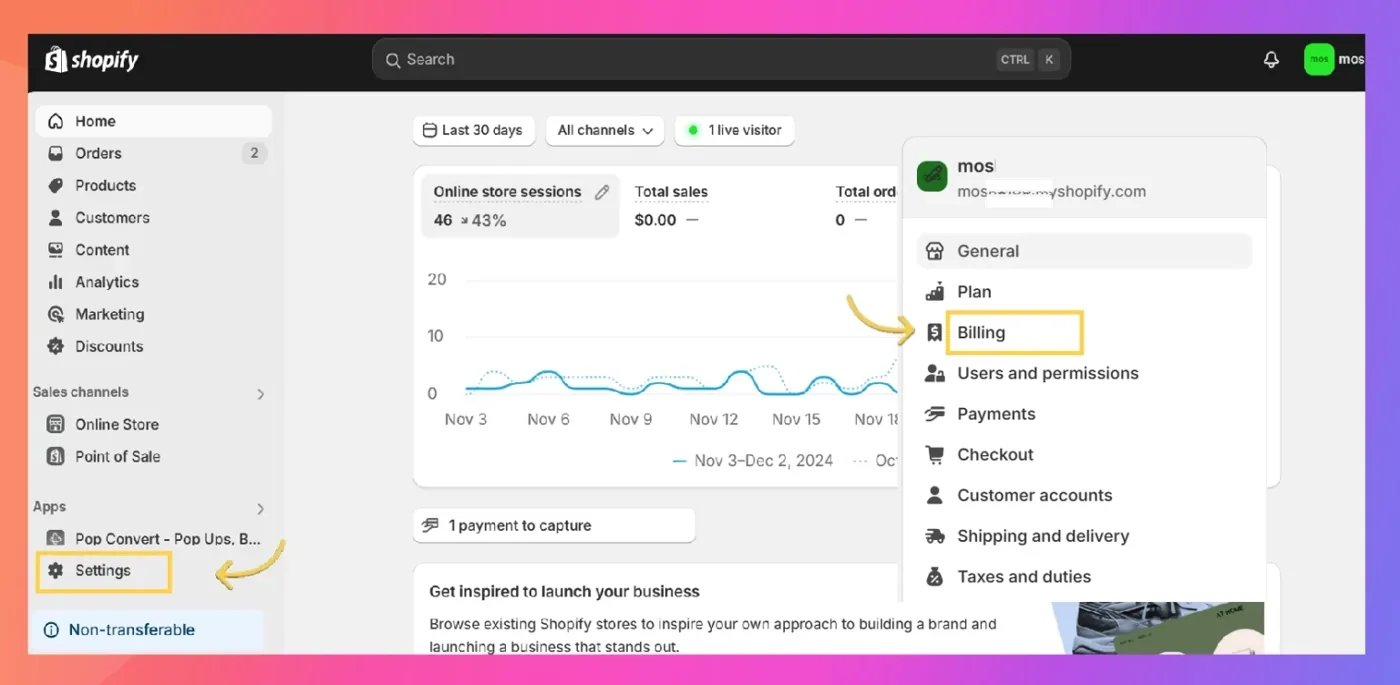
Update your credit card information or change your payment method.
Any changes will apply to all your Shopify app subscriptions, including Importify.
For Wix users
Sign in to your Wix account
Go to "Subscriptions" in your Wix account settings
Find Importify in your list of subscriptions
Click on "Change" next to the payment method
Update your billing information as needed
For WooCommerce, BigCommerce and Jumpseller users
Go to the PayPro Global login page: https://cc.payproglobal.com/Customer/Account/Login
and use your billing email as your login.
Your password was sent to this email when you made your purchase. If you cannot find it:
Click "Forgot Password" or visit https://cc.payproglobal.com/Customer/Account/ResetPassword
Enter your billing email and click "Forgot Password"
Check your email (including spam folder) for the password reset link
Once logged in:
Go to "MY CREDIT CARDS"
Click "Add New Card" to add a new payment method
Set it as the default to make it your primary payment method
Navigate to "SUBSCRIPTIONS" and link the new card to your Importify subscription
Important note
Remember, Importify doesn't handle payments directly. If you encounter any issues while updating your payment information, please contact your platform's support team (Shopify or Wix) or PayPro Global support (for WooCommerce, BigCommerce and Jumpseller).
It's important to keep your billing information up to date to avoid any interruption in your Importify service. If you've recently changed your credit card or billing address, make sure to update this information promptly.