
How to sign in with email and switch between your stores
Email sign-in lets you open Importify with a 6-digit code sent to your email, instead of going through your store admin. Link your stores once and switch between them from the dashboard sidebar.
On this page
Honest note: this is a beta. It's rolling out to stores gradually, so some parts may not be available for your store yet.
Before you start
Importify is installed on every store you want to link. Linking doesn't install the app or change a plan.
You can open the email you'll use. Every link and every sign-in sends a code there.
How do I link a store to my email?
Open Importify from the store's admin, click Link this store and confirm the code we email you. Do it once per store, with the same email each time. Each store keeps its own plan and billing. Linking only adds a way in.
Open Importify from your Shopify, Wix, WooCommerce, BigCommerce or Jumpseller admin, as usual.
Click Link this store in the banner at the top of the dashboard. No banner? Go to Settings and open the Account tab.
Check the email and click Send code. Importify fills in your store's email when it has one. Change it to any inbox you can open now.
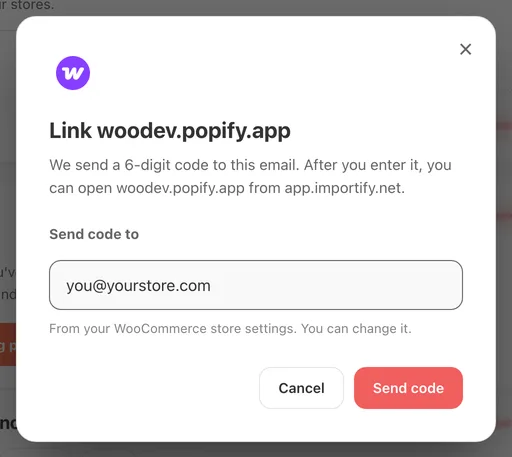
Enter the 6-digit code from the email and click Link this store. We email you a confirmation.
How do I sign in with my email?
On the Importify login page, choose Sign in with email, enter your email and type the code we send. The code works once and expires after 10 minutes. With one linked store, Importify opens it. With several, you pick one.
Go to the Importify login page and click Sign in with email.
Enter your email and click Continue with email.
Type the code, or click Sign in in the email.
You stay signed in on that browser for 30 days. Log out to end it sooner.
How do I switch between my stores?
Click the store name at the top of the dashboard sidebar and pick another store. It opens in the same tab, on the page you were on. The menu appears once two or more stores are linked to your email.
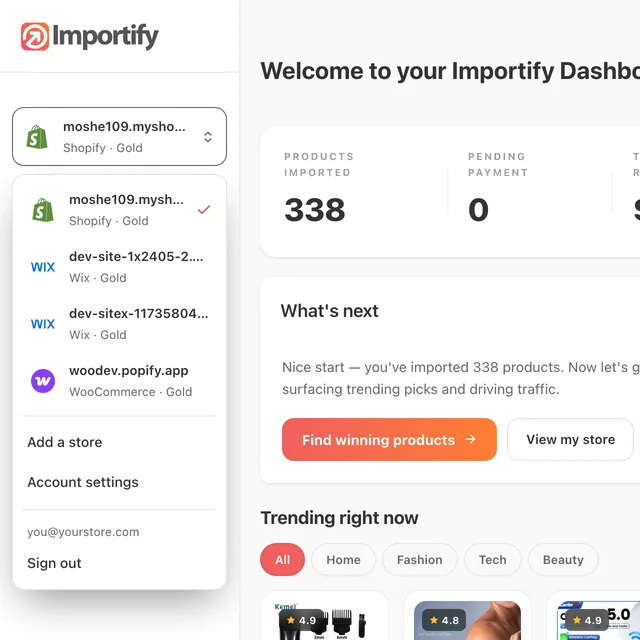
The Chrome extension imports into the store that's open. Switch, and your next import goes to the new store. Check the store name in the sidebar before you click Add.
Keep one Importify tab open. If another tab still shows the old store, it asks you to reload before you can use it. Inside the Shopify and Wix admins, the store menu is hidden: there, your platform decides which store is open.
How do I change my email or unlink a store?
Both live in Settings, on the Account tab.
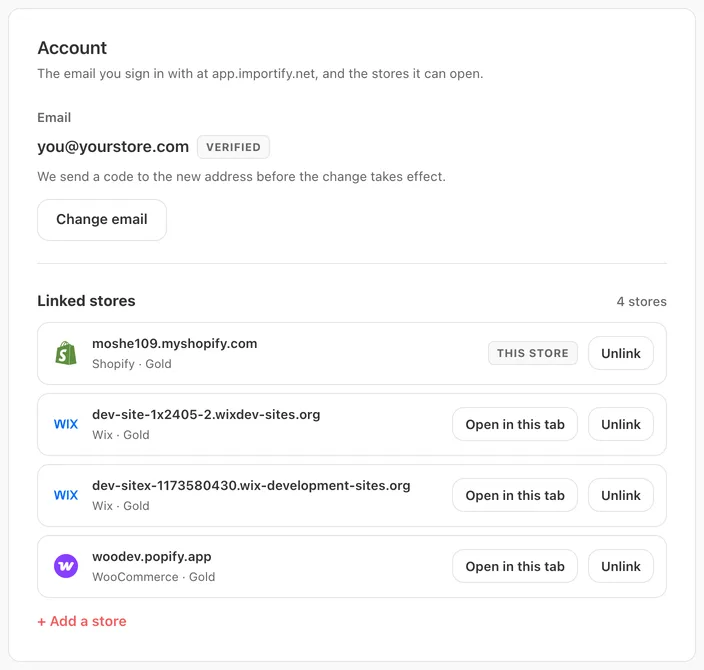
Change email: enter the new email, then the code we send to it. The switch happens once you enter the code, and we let your old email know.
Unlink: removes the store from your email. You can still open it from its store admin, and link it again any time.
What if something doesn't work?
| What you see | What to do |
|---|---|
| The code doesn't arrive | Check spam. After the countdown, click Resend code. We send up to 3 codes an hour to one email. |
| "That code is not right" | Use the newest code. After 5 wrong tries, request a new one. |
| "No stores linked to this email yet" | Open Importify from your store admin and link the store with this email first. |
| No Link this store banner | Use the Account tab in Settings. Not now hides the banner for 30 days on that browser. |
| A product went to the wrong store | Delete it in that store, switch to the right store and import it again. |
Still stuck? Contact us.
Frequently asked questions
Does linking my stores change my plans or billing?
No. Each store keeps its own plan and is billed separately, through Shopify, Wix or PayPro Global as before. Linking only adds a way to sign in.
Can I still open Importify from my store admin?
Yes, exactly as before. Email sign-in is an extra way in, not a replacement.
My store has no email in its settings. Can I still link it?
Yes. Type any email you can open now. The code goes there, and that email becomes your sign-in email.
Can two people use the same store?
Each store links to one email at a time in this beta. Team access isn't available yet.