
How to choose which store the Chrome extension imports to
Click the arrow next to Add to store and pick a store. Your imports go to that store until you pick another one, even if your dashboard has a different store open. You need extension version 9.9.42 or later.
On this page
Before you start
Importify is installed on every store you want to import to. Picking a store doesn't install the app or change a plan.
To see all your stores in the list, link them to one email first. See How to sign in with email and switch between your stores.
How do I pick the store to import to?
Open a product and click Add. The store name under Add to store is where the product will go.
Click the arrow next to Add to store. The Import to list opens, with the store you import to now ticked.
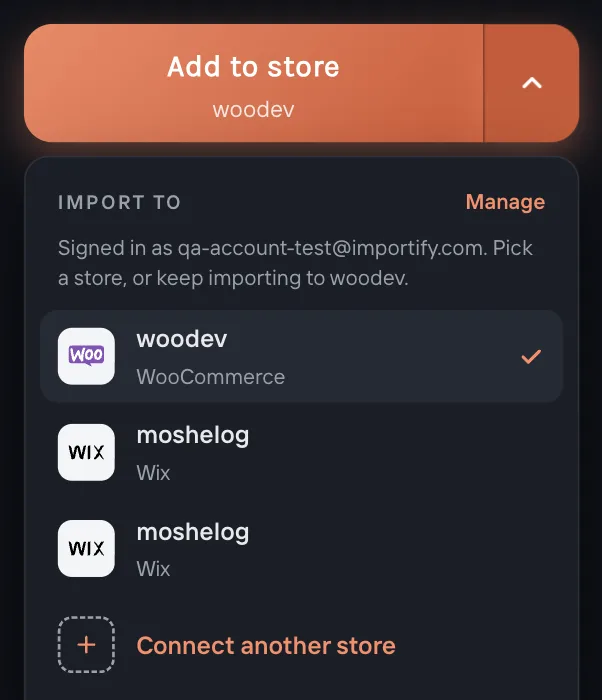
Click a store. The button and the Rules from pill now show that store, and the panel loads its pricing rules.
Click Add to store. The product goes to the store you picked.
Your pick stays in Chrome for every product you open, until you pick another store or log out of your dashboard. Picking a store in the extension doesn't change the store open in your dashboard.
What follows the store you pick?
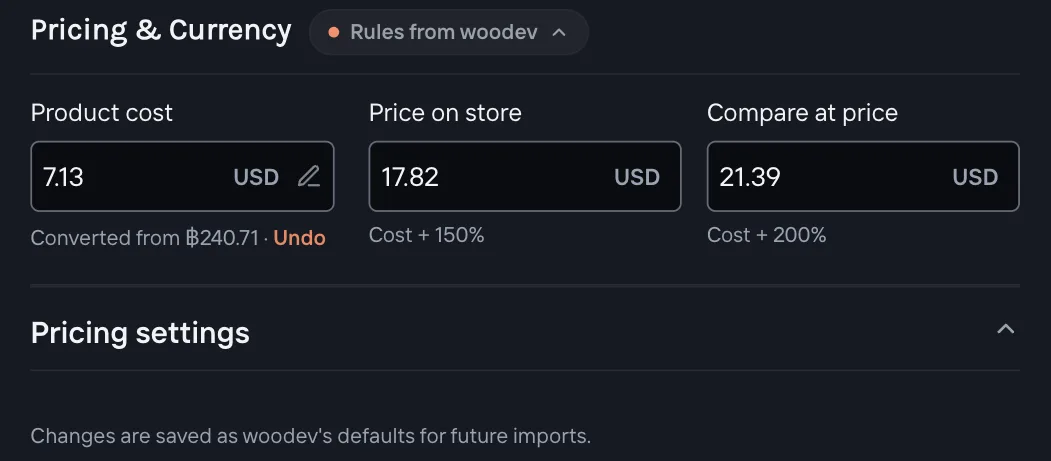
Pricing rules. Rules from names the store whose markup, compare-at and cents rules apply. Changes in Pricing settings save as that store's defaults.
Update an existing product. The "already in your store" check and the update search the store you picked.
Why does the list show only one store?
You're not signed in. Click Sign in at the bottom of the list, enter your email and the 6-digit code we send. Every store linked to that email then shows up.
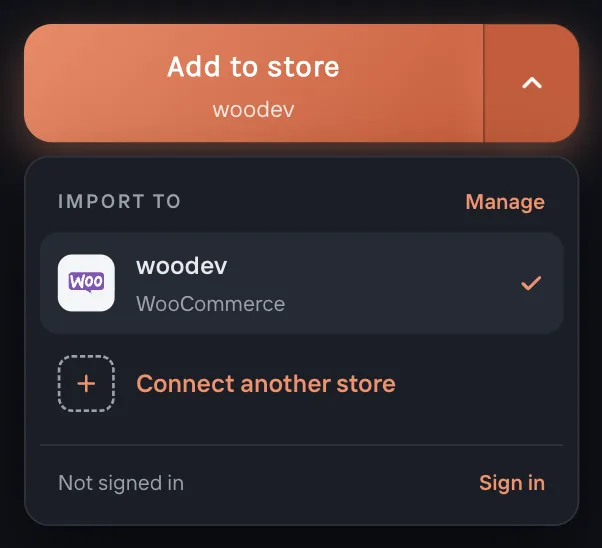
Signed in with the wrong email? Click Switch at the bottom of the list and sign in with the other one.
How do I add another store?
Click Connect another store at the end of the list. If you're signed in, the Add a store window opens over the panel. If you're not, you sign in first. Manage opens the Account tab of your dashboard Settings, where you can unlink a store or change your email.
What if something doesn't work?
| What you see | What to do |
|---|---|
| "Store disconnected" when you click Add | The store you picked was uninstalled or disconnected. Click Use another store and pick one, or reopen Importify from that store's admin. Nothing imports until you pick. |
| A store is missing from the list | It isn't linked to your email. Open Importify from that store's admin and click Link this store. |
| "This store is linked to another email" | Sign in with that email to connect more stores. |
| Imports go to a different store after you log out | Logging out of the dashboard clears your pick. Pick the store again. |
| A product went to the wrong store | Delete it in that store, pick the right store next to Add to store, and import it again. |
Frequently asked questions
Does picking a store change my dashboard?
No. Your dashboard keeps the store it has open. Switch stores there from the store name at the top of the sidebar.
Does each store need its own plan?
Yes. Each store keeps its own plan and billing. The store picker only decides where a product goes.
Can I import the same product to two stores?
Yes. Import it, pick the other store, and click Add to store again.