
How to fix an Importify connection blocked by Cloudflare
If Cloudflare blocks your WooCommerce connection, lower aggressive security rules temporarily or allow Importify traffic, then reconnect your store from Importify.
On this page
Use the narrowest Cloudflare change that lets the connection complete. The goal is to let Importify reach WordPress without leaving broad challenge or firewall exceptions in place longer than needed.
Before you change Cloudflare
Confirm WooCommerce and the Importify WordPress plugin are active.
Confirm your store loads over HTTPS.
Confirm WordPress permalinks are not set to Plain.
Keep your Cloudflare account open and your Importify dashboard open in another tab.
Fix the Cloudflare block
Log in to Cloudflare and select the domain connected to your WooCommerce store.
Open the Cloudflare security area where your challenge, firewall, or WAF rules are managed.
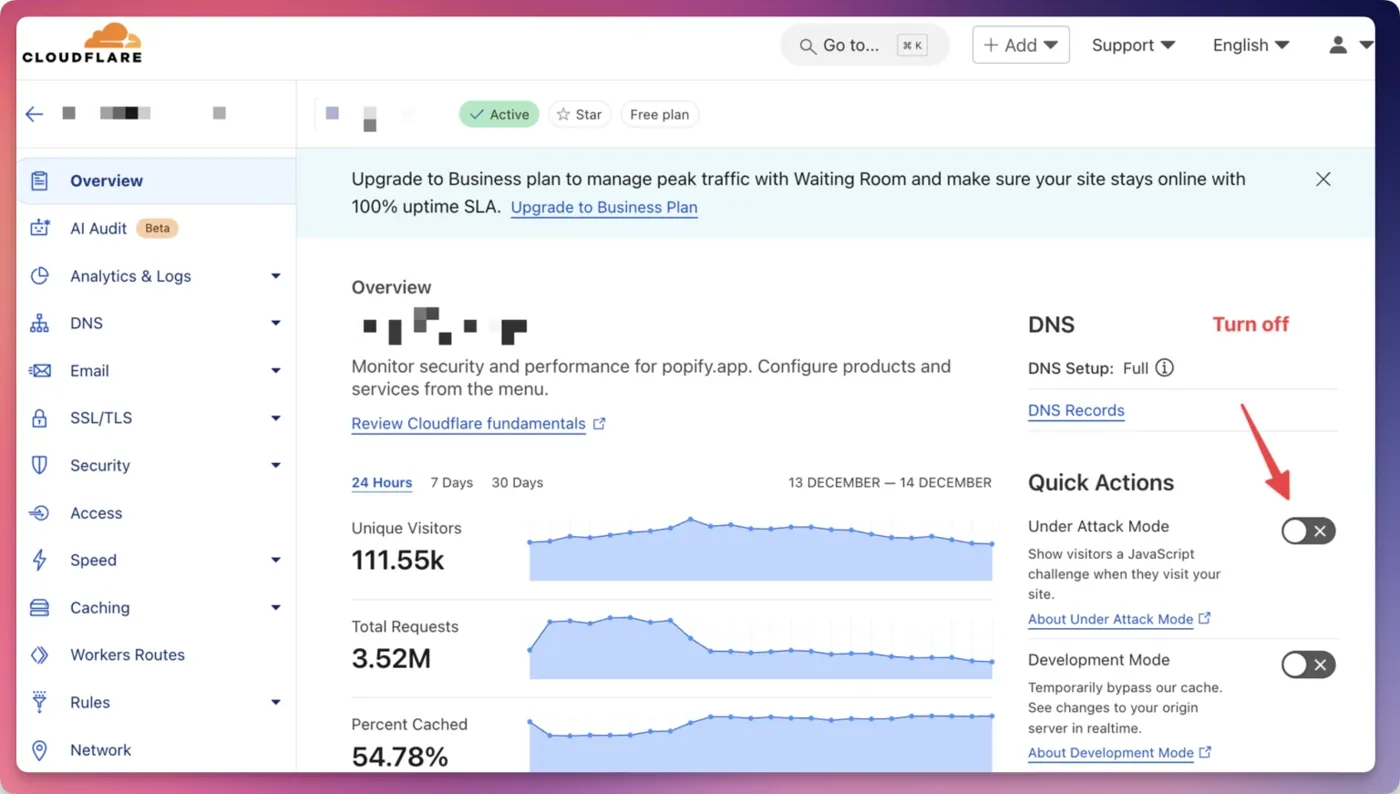
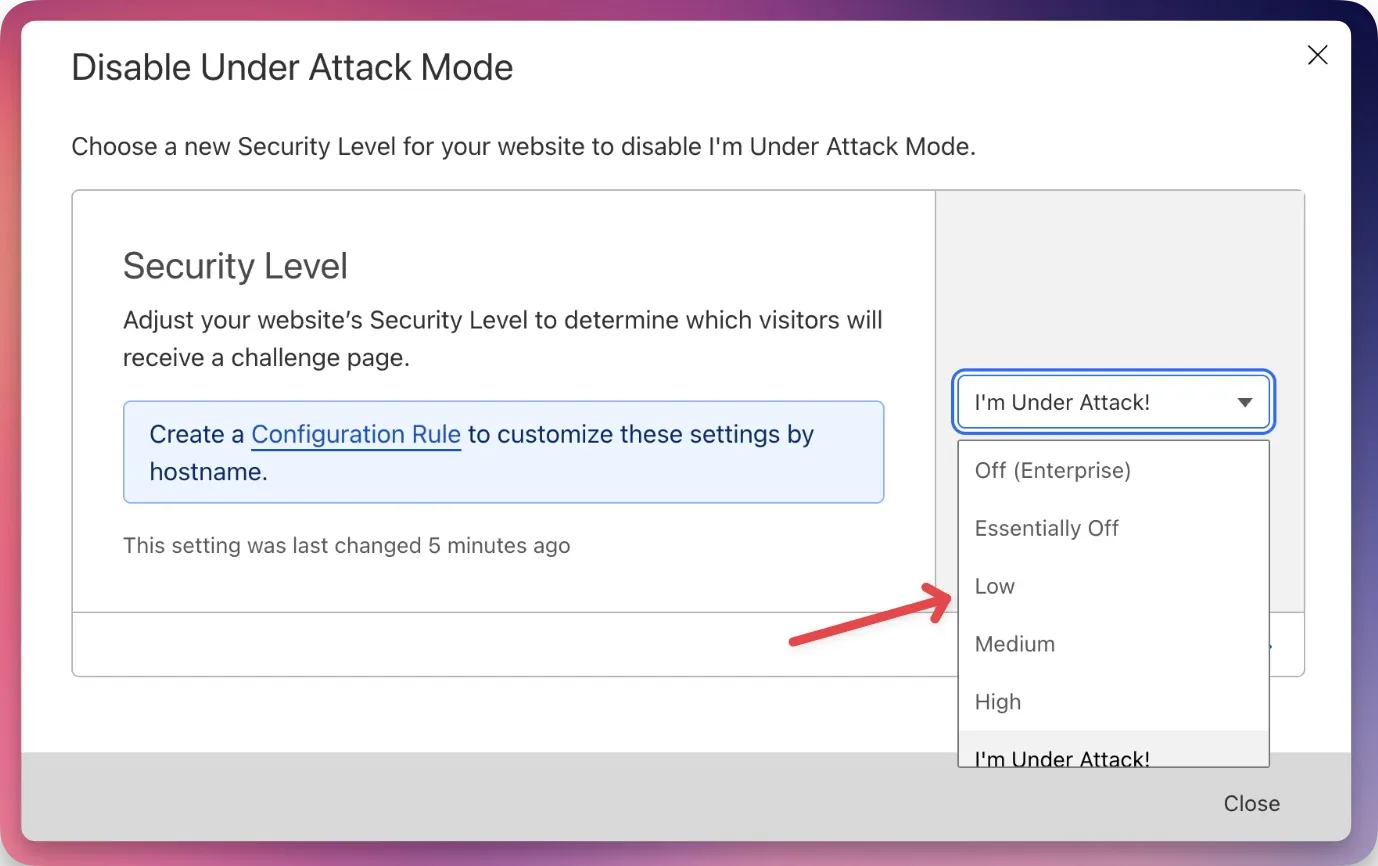
If Under Attack mode is on, turn it off temporarily or lower the security level while you reconnect Importify.
If you use custom firewall or WAF rules, allow Importify traffic to your store. The Importify IP used for WooCommerce troubleshooting is
162.243.171.163.Wait a few minutes for Cloudflare changes to apply.
Return to Importify and reconnect your WooCommerce store.
If the connection works, keep the allow rule in place so Cloudflare does not block future Importify requests.
What to ask your host
If your host manages Cloudflare for you, ask them to allow Importify traffic to your WooCommerce site and to whitelist 162.243.171.163. Also ask them to check whether server-level security is blocking external API requests.
If it still fails
| Check | Why it matters |
|---|---|
| WooCommerce plugin active | Importify cannot connect if WooCommerce is inactive. |
| Importify plugin active | The WordPress plugin creates the WooCommerce connection path. |
| HTTPS valid | SSL errors can block the connection before Importify reaches your store. |
| Permalinks not Plain | Plain permalinks can break WooCommerce routes Importify needs. |
| Security plugin rules | Wordfence, Sucuri, Jetpack, and similar tools can block the same traffic Cloudflare blocks. |
Frequently asked questions
Why can Cloudflare block Importify?
Cloudflare security rules can challenge or block outside requests that Importify needs in order to connect to your WooCommerce store.
Should I turn off Cloudflare completely?
No. Start by lowering aggressive challenge settings temporarily or creating an allow rule for Importify traffic.
Which Importify IP should I allow?
Use 162.243.171.163, which is the Importify IP used in the WooCommerce connection troubleshooting guide.
How long should I wait before reconnecting?
Wait a few minutes after changing Cloudflare settings, then retry the WooCommerce connection from Importify.