How to Transfer Importify Subscription to Another Platform?
Transfer an Importify subscription only after confirming the source platform, destination platform, and billing path for the new store.
On this page
Transferring your Importify subscription to a new e-commerce platform involves canceling your current subscription and setting up a new one.
Cancel your existing subscription
For WooCommerce, BigCommerce or Jumpseller
- Log into your Importify dashboard
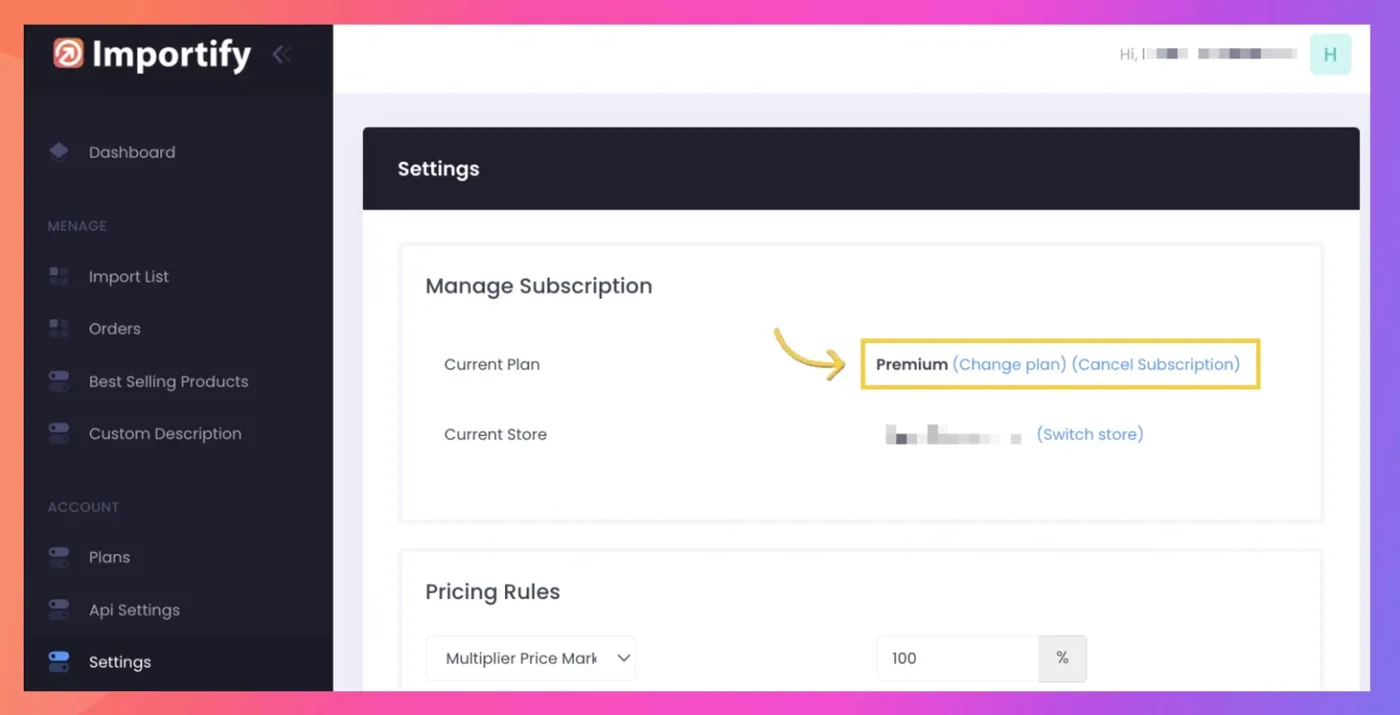
- Go to Settings > Subscription
- Click "Cancel Subscription"
- Delete the Importify plugin (WooCommerce) or uninstall the Importify app (BigCommerce, Jumpseller)
For Shopify/Wix
- Log into your platform's admin dashboard
- Go to the Apps section
- Delete the Importify app (this automatically cancels your subscription)
Set up Importify on your new platform
- Log into your new platform's admin dashboard
- Install the Importify app/plugin
- Open the app and choose a subscription plan
- Complete the payment to activate your new subscription
Important tips
- Back up your store data before making any changes
- Review Importify's plans to choose the best option for your needs
- There may be a brief period where you don't have access to Importify while switching platforms
Cancel your old subscription before you subscribe on the new platform, so you don't pay for two subscriptions at once.
Moving from Shopify? Export your products to a CSV file, then bring them into your new store with CSV Product Import.
Importify dashboard screenshot below: