
How to Create Smart Templates with AI in Importify
Create reusable AI Smart Templates for product descriptions using dynamic tokens, language settings, writing style, and audience targeting.
On this page
Plan note: Smart Templates work on every plan. Generate template with AI is included on Premium and Gold.
Importify AI Smart Templates help you create reusable product description layouts for imported products. A smart template can include fixed text, formatting, and dynamic tokens such as {{title}}, {{price}}, {{tags}}, and {{default description}}. When you apply the template, Importify fills those tokens with the product data from the item you are importing.
You can write a template manually or use AI to create a first draft based on your language, style, and audience.
What AI Smart Templates Are Used For
Use Smart Templates when you want imported products to follow the same description structure across your store. They are useful when you import many products from supplier marketplaces and do not want every product page to look like copied supplier text. If you are still setting up the import workflow, start with the Importify Chrome extension guide.
Smart Templates can help you:
Create consistent product descriptions.
Reuse the same structure for many products.
Include dynamic product data automatically.
Improve supplier descriptions before publishing.
Match product copy to your store voice and audience.
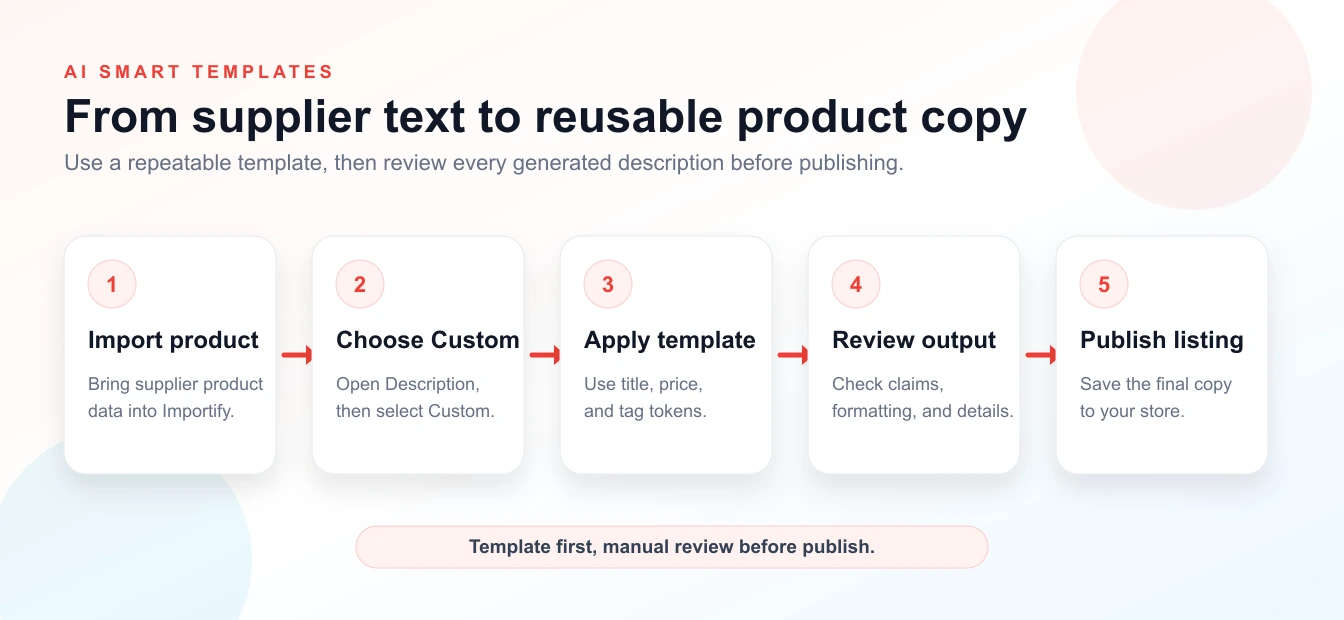
Where To Find Smart Templates
Open a supplier product page and click the Importify Add button, or open a product in the Importify product editor.
Go to the Description tab.
Select the Custom Template description option.
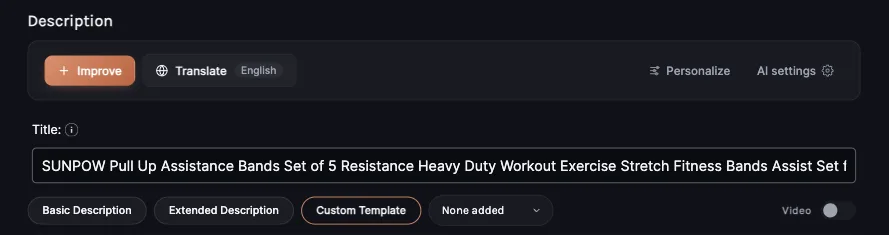
In the template dropdown, choose + New Template to open the template editor.
After you save a template, it appears in the Custom Description dropdown during future imports.
How To Create A Smart Template Manually
Enter a clear template name, such as Home Decor Product Description or Pet Product SEO Template.
Write the description structure you want to reuse.
Use token buttons to insert dynamic product data.
Review the layout and make sure it will work across multiple products.
Save the template.
Example structure:
<h2>About {{title}}</h2>
<p>{{default description}}</p>
<ul>
  <li>Product type: {{type}}</li>
  <li>Price: {{price}}</li>
  <li>Tags: {{tags}}</li>
</ul>
The goal is not to make every product identical. The goal is to give every imported product a clean structure that you can edit before publishing.
How To Create Smart Templates With AI
If you do not want to start from a blank template, use the AI option to generate a draft.
Open the Smart Template editor.
Choose the output language.
Select the writing style, such as professional, friendly, playful, or SEO-focused.
Choose the target audience, such as parents, pet owners, gift shoppers, tech buyers, or budget shoppers.
Click Generate template with AI.
Review the generated template and edit it before saving.
AI-generated templates are starting points. Before saving, check that the template uses tokens correctly, avoids claims you cannot support, and fits your store's tone.
Common Smart Template Tokens
Available tokens may vary by product and import source, but common tokens include:
{{title}}: product title.{{price}}: product price.{{compare at price}}: compare-at price, when available.{{default description}}: the original imported description.{{type}}: product type.{{weight}}: product weight, when available.{{tags}}: product tags.
In the template editor, the Insert Token buttons are Title, Price, Compare at price, Default description, Type, Weight, Tags and Vendor. Insert tokens with these buttons instead of typing them, so Importify recognizes each one when it fills the template.
Use tokens instead of hardcoding product names, prices, vendor names, or specs. Hardcoded details can become wrong when you reuse the template on another product.
Best Practices
Keep templates reusable: avoid wording that only fits one product.
Edit before publishing: always review the final description after tokens are filled.
Use clear sections: shoppers scan product pages, so headings and bullet points help.
Avoid unsupported claims: do not add medical, safety, guarantee, or certification claims unless you can verify them.
Create templates by niche: one template for pet products, another for home decor, another for tech accessories.
Do not over-optimize: write for shoppers first, then include relevant search terms naturally.
When To Use Smart Templates Instead Of Full AI Optimization
Use Smart Templates when you want a repeatable description layout across many products. Use the AI Product Optimizer when you want a deeper rewrite for one specific product, including stronger positioning, audience targeting, FAQ content, or trust sections.
For high-priority products, you can use both: start with a Smart Template, then manually improve the final product page before publishing.
Related Guides And References
How to create a high-converting product page with the AI Product Optimizer
Shopify product details documentation, for the product fields you should review after generating or applying a template.