
How to Use Importify Product Finder
Use Product Finder to search with a description, combine product filters, or paste a direct AliExpress URL, then review and import the product from your dashboard.
On this page
- Short answer
- Before you start
- How do you search Product Finder with a description?
- How do Product Finder filters work?
- Can you paste an AliExpress URL into Product Finder?
- What do Product Finder result cards show?
- How do you import a Product Finder result?
- How do you troubleshoot Product Finder?
- Related guides
- FAQ
Plan note: browsing Product Finder, using its filters, and importing products are available on every plan. AI Smart Search, which interprets a plain-language product description, requires Premium or Gold.
Before you start
Connect your Shopify, Wix, WooCommerce, BigCommerce, or Jumpseller store to Importify.
Choose a product idea, niche, or direct AliExpress product URL.
Know your target selling country and acceptable price range so you can filter useful results.
Check the live supplier product before publishing. Product Finder helps you compare products, but supplier details can change.
How do you search Product Finder with a description?
Open Product Finder in your Importify dashboard.
Describe what you want in the search field. You can include the product type, maximum price, minimum rating, or stock requirement.
Review the products ranked against your description.
Adjust the description if the results are too broad. Remove unnecessary conditions if the search returns too few products.
For example: dog accessories, 4.6 stars and up, under $18, in stock. Treat the numbers as filters for that search, not as a guarantee about every product.
How do Product Finder filters work?
You do not need to write a description. Open Product Finder and combine filters to narrow the results:
Market: compare top sellers in markets such as Global, United States, United Kingdom, France, Korea, or Spain.
Sort: reorder results by options such as best selling, top rated, biggest discount, cheapest first, or AI Winner Score.
Ship from: choose the warehouse region that fits your delivery plan.
Rating: set the minimum star rating you are willing to consider.
Price: keep products inside the supplier-cost range you want to test.
Stack the filters instead of relying on one signal. A highly rated product can still have weak margins or slow delivery, while a low-priced product may not fit the market you serve.
Can you paste an AliExpress URL into Product Finder?
If you already found an AliExpress product, paste its direct product-page URL into the Product Finder search field. Do not paste an AliExpress home page, category, cart, or search-results URL.
Copy the complete URL from the AliExpress product page.
Open Product Finder and paste the URL into the search field.
Open the product in the Importify editor.
Review the supplier details before adding it to your store.
This pasted-link workflow is for AliExpress. To import a product you find directly on another supported supplier site, use the Importify Chrome extension on a computer.
What do Product Finder result cards show?
Each result card brings the main research signals together:
Supplier price and displayed comparison price
Product rating and review count
Estimated delivery information
Warehouse location
Units sold
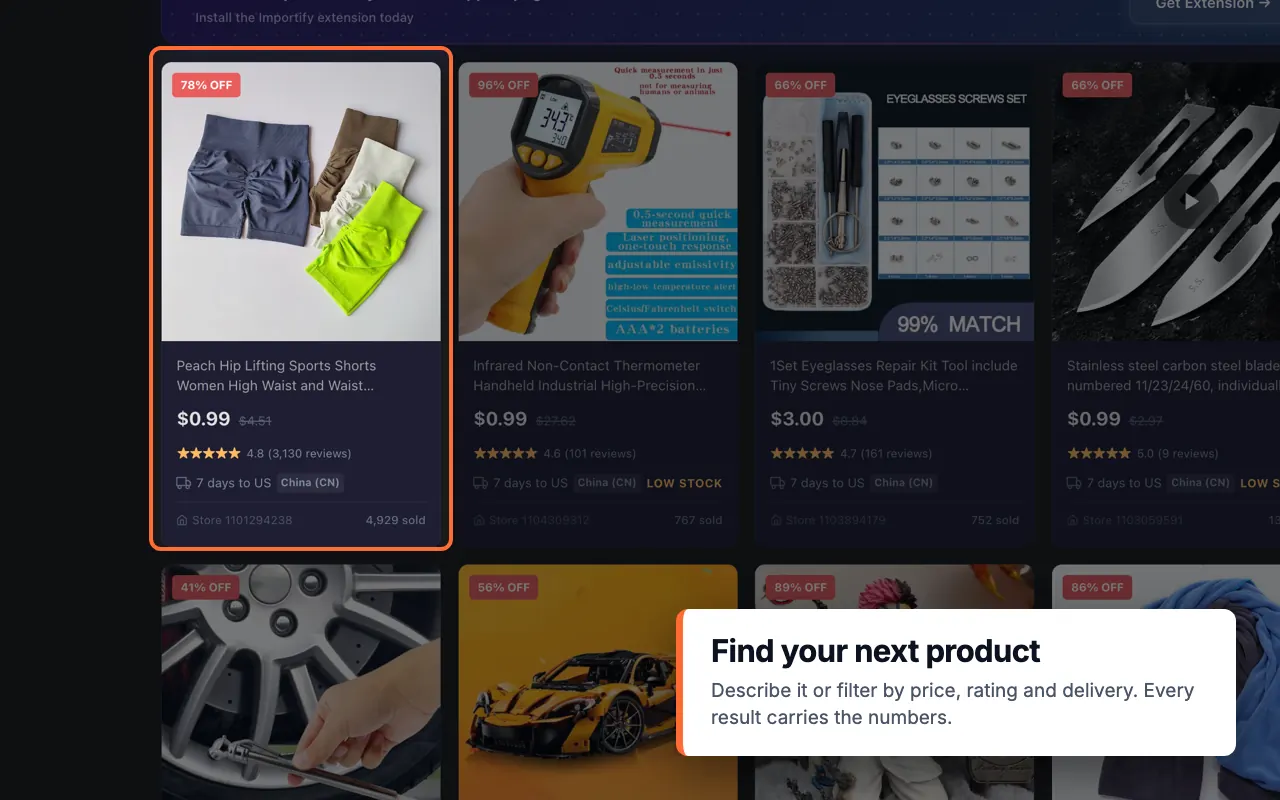
Use these numbers to create a shortlist, not to skip supplier research. Open the live listing and check its current price, shipping, variants, images, specifications, and recent reviews.
How do you import a Product Finder result?
Select the product you want to review. Importify opens the product editor before anything is sent to your store.
Review the title, description, images, variants, SKU, vendor, product type, and collections.
Check the supplier cost, markup, final price, compare-at price, shipping, and fees.
Use the AI Product Optimizer on Premium or Gold if you want to rewrite or translate the listing. Review all AI-generated content for accuracy.
Click Add to store.
Open the product in your store admin and storefront. Confirm the title, images, variants, price, and description from the customer view.
How do you troubleshoot Product Finder?
| Problem | What to check |
|---|---|
| No products match your search | Shorten the description, remove one condition, widen the price range, or clear one filter and search again. |
| AI Smart Search is unavailable | Confirm that your account is on Premium or Gold. Standard Product Finder browsing, filters, and importing remain available on every plan. |
| An AliExpress URL does not load | Copy the direct product-page URL again. Do not use a search, category, cart, shortened, or home-page URL. |
| Delivery information looks wrong | Open the supplier listing and set the destination country there. Treat the current supplier page as the final source for shipping availability and cost. |
| The product details changed after you selected it | Review the live supplier page before importing. Supplier prices, availability, variants, and shipping can change. |
Related guides
Frequently asked questions
What is Importify Product Finder?
Product Finder is the product research and importing tool inside the Importify dashboard. Use it to search, filter, compare, review, and import products without opening a supplier site first.
Which plans include Product Finder?
Product Finder browsing, filters, and product importing are available on every Importify plan. AI Smart Search, which interprets a plain-language description, requires Premium or Gold.
What is the difference between Product Finder and AI Smart Search?
Product Finder is the full research interface, including standard browsing, filters, product cards, and importing. AI Smart Search is the Premium and Gold feature that understands a plain-language product description and ranks matching results.
Can I paste an AliExpress URL into Product Finder?
Yes. Paste a direct AliExpress product-page URL into the Product Finder search field. Search, category, cart, and home-page URLs will not load as products.
Can I use Product Finder on my phone?
Yes. Product Finder works in your mobile browser, so you can search, review, edit, and import products without installing a separate Importify mobile app.
Do I need the Chrome extension to use Product Finder?
No. Product Finder runs inside the Importify dashboard. Use the Chrome extension when you want to import directly from a supported supplier product page on a computer.