
How to use the AI Wizard to create a store-ready product
Click AI Wizard in the extension panel and follow 7 steps: AI writes the title, description and SEO fields, you pick images, variants and prices, then import. Premium and Gold, extension 9.9.43 or later.
On this page
The AI Wizard turns a supplier listing into a store-ready product in 7 steps, inside the Chrome extension. AI writes the title, description and SEO fields; you pick the images, variants and prices, then import. It's on Premium and Gold, runs on OpenAI's GPT-6 Luna, and needs no OpenAI API key.
Why use the AI Wizard?
It puts every part of a good listing in one window, in the order you'd do it, so nothing gets missed.
The title and description read like your store, in the brand voice you pick, without "FREE SHIPPING" or repeated keywords.
The Pricing step shows the exact price your store will charge, from your own pricing rules.
Tags, a product type and a meta description come filled in, with a Google search preview.
The last step checks what's ready before the product goes live.
Before you start
Your store is on the Premium or Gold plan.
You have Importify Chrome extension version 9.9.43 or later.
You're on a product page from a supported supplier, and you've clicked Add to open the panel.
How do I use the AI Wizard?
Click AI Wizard at the top right of the panel. The wizard opens with its 7 steps across the top. Move with Next and Back. On the Title and Description steps, Skip keeps the supplier's text.
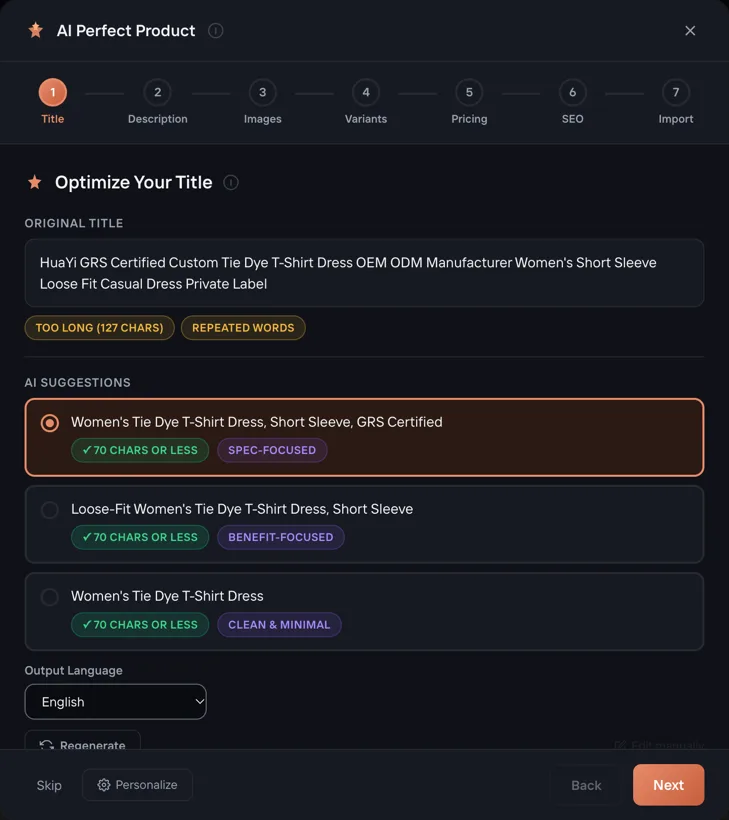
Title. Pick one of 3 AI titles: spec, benefit or clean. Each is 70 characters or less, with junk text and repeated words removed. The first is already selected. Click Regenerate for new ones, or Edit manually to write your own. Set Output language if your store sells in another language.
Description. AI rewrites the supplier copy into short, scannable benefits and moves the specs into a clean table. Choose a Brand voice: Bold, Friendly, Luxury, Minimalist or Playful. AI settings sets the FAQ and trust content added to your descriptions.
Images. Tick the images and videos you want. Videos go at the top of the description (on Wix, into the product's media gallery). Images that belong to a variant always import, so every variant keeps its photo.
Variants. Import all variants or select the ones you want. Translate variant names puts colors and sizes in your store's language. If you select more variants than your store allows, the wizard stops you here.
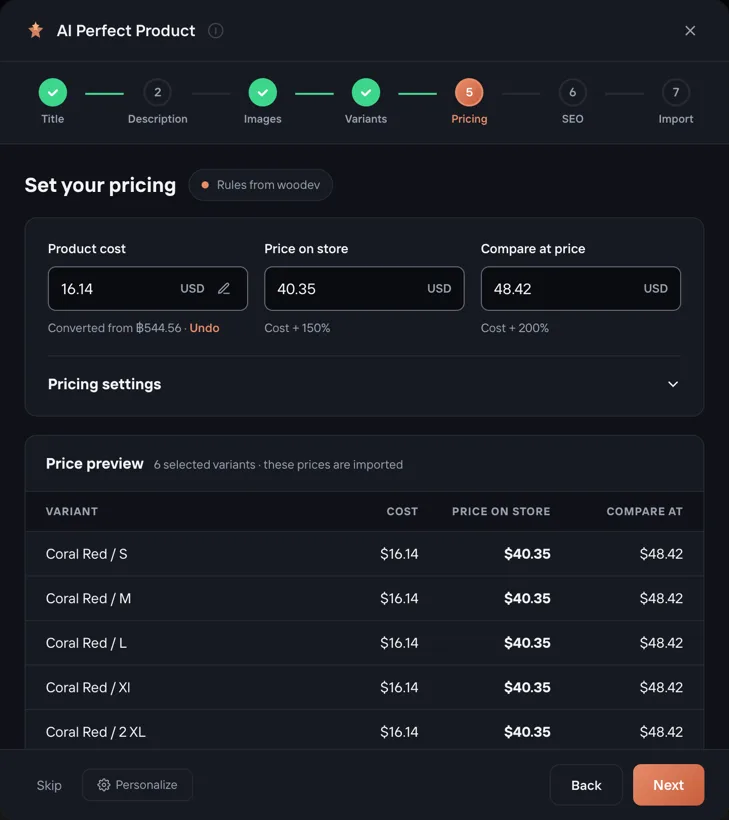
Pricing. Check the product cost, your price on store and the compare-at price, converted to your store's currency. The Price preview lists each variant's price. Pricing settings opens the same markup, compare-at and cents settings as the panel.
SEO. Click Generate Tags with AI, Suggest Type with AI and Generate Meta Description with AI, or type your own. The Google search preview shows how the product will appear.
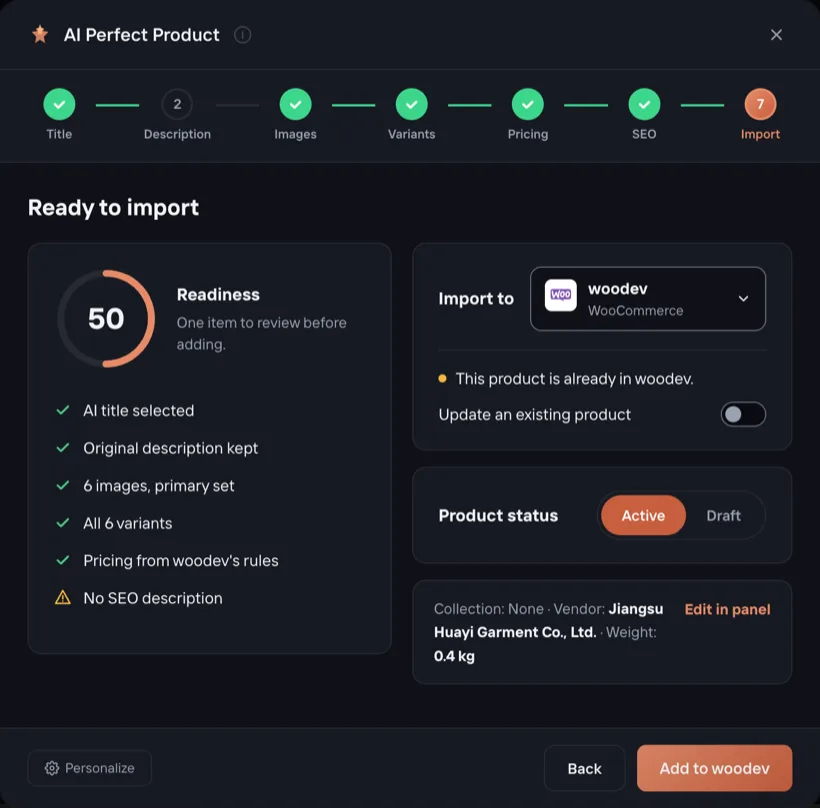
Import. Check the store under Import to, pick Active or Draft, and read the readiness checklist. If the product is already in your store, turn on Update an existing product. Then click Add to and your store's name, for example Add to My Store.
What else should I know?
Edit in panel on the Import step opens the full panel with your wizard choices kept, for anything the wizard doesn't cover.
Variant limits per product depend on your platform: Shopify 2,048, Wix 1,000, BigCommerce 600, WooCommerce 500 and Jumpseller 100.
Frequently asked questions
Which plans include the AI Wizard?
Premium and Gold. On Basic, clicking AI Wizard shows a short note with Upgrade now.
Do I need my own OpenAI API key?
No. The AI Wizard runs on OpenAI's GPT-6 Luna through Importify's own OpenAI account.
Can I keep the supplier's title or description?
Yes. Click Skip on the Title or Description step, or click Edit manually to write your own title.
Can I update a product that's already in my store?
Yes. On the Import step, turn on Update an existing product. The wizard updates that product instead of adding a new one.