
How to Import Products From Tmall (Shopify, Wix, WooCommerce & More)
Open a Tmall product page, use the Importify import button, edit the listing, then add it to Shopify, Wix, WooCommerce, BigCommerce, or Jumpseller.
On this page
- Short answer
- Before you start
- Import and translate a Tmall product
- Use Importify AI translation for Chinese listing content
- What can you edit before importing?
- Publish live or save as draft
- Check seller and resale details before selling
- Fulfillment notes for Tmall orders
- Platform notes
- Troubleshooting and common checks
- Related guides and references
- FAQ
Tmall listings often need extra cleanup after import. Confirm you can access the product page, translate the customer-facing text, and review variants, images, and shipping details before publishing.
Need the listing in your store language? Watch how Translate keeps the supplier structure while Improve rewrites it.
Tmall product pages are usually written for Chinese shoppers and can include brand or store-specific listing details. Review the listing carefully before publishing, especially product authenticity, seller terms, variants, pricing, shipping path, and your right to resell the product.
Tmall import works on every Importify plan with unlimited imports. Importify AI translation, AI Product Optimizer, and automated currency conversion are part of the Premium and Gold feature set.
Before you start
Make sure you have an active Importify subscription and that Importify is installed on your store. Then install the Importify Product Importer Chrome extension. If you are not signed in when you import your first product, Importify prompts you to log in.
- Import method: use the Importify browser extension so the Add button appears on supported supplier product pages.
- Tmall account: sign in to Tmall in the same Chrome browser profile before importing. Tmall can hide product details, prices, variants, or shipping information until your marketplace session is active.
For Tmall, importing as a draft is usually the safer choice. Review translated wording, variant names, product claims, brand references, seller images, shipping promises, and fulfillment details before publishing.
Import and translate a Tmall product
Use this flow when you already found a Tmall product you want to add to your store.
Sign in to Tmall
Open Tmall in Chrome and sign in to your Tmall account. Stay in the same browser profile you use with the Importify extension.
Open the Tmall product page
Go to the exact product page you want to import. Review product details, images, variants, prices, seller terms, and available shipping information.
Click the Importify Add button
Click the Importify Add button on the Tmall product page. If you do not see it, check that the browser extension is installed and enabled, then refresh the product page.
Review the product details
The Importify window opens with the imported product details. Check the title, description, images, variants, and pricing before you add the product to your store.
Translate the listing
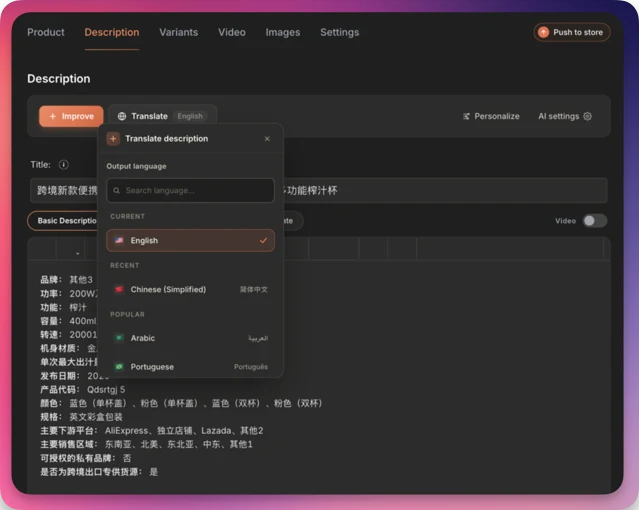
Open the Description tab, click Translate, choose the output language, and review the translated title, description, variants, and product details.
Add the product to your store
When the product is ready, click Add to store. The product publishes live by default, or you can switch it to Draft before importing.
Use Importify AI translation for Chinese listing content
Jump to this moment in the Taobao walkthrough: the Chinese title becoming an English one.
Most Tmall listings are written for Chinese buyers. Use Importify AI translation when the supplier title, description, variant names, or product details need to match your store language before publishing.
AI translation is part of Importify's AI feature set on Premium and Gold plans. Users do not need to connect their own OpenAI API key.
Translation helps with language, but it does not replace seller review. Always check specifications, measurements, materials, colors, bundle options, and shipping details against the live Tmall page.
What can you edit before importing?
Use the Importify window to turn raw Tmall listing content into a cleaner product page before it reaches your ecommerce platform.
| Area | What to check | Plan notes |
|---|---|---|
| Product details | Edit the title, description, vendor, product type, tags, and collection assignment. | Available on supported plans. |
| Images and video | Choose the images you want to keep. If the supplier listing includes product video content, use the product video import workflow. | Available on supported plans. |
| Variants | Review option names, translated variant labels, SKU details, bundle choices, and prices. Use variant splitting when one supplier listing should become separate products. | Available on supported plans. |
| Pricing | Set your margin with Smart Pricing Rules. Premium and Gold can use automated currency conversion. | Currency conversion is Premium and Gold. |
| AI content | Translate listing content, rewrite the title, generate a benefit-driven description in your brand voice, and create buyer FAQ or trust content. | AI features are Premium and Gold. |
| Reviews | Use the Editorify integration if you want to import product reviews to the product page. | Handled through Editorify. |
Publish live or save as draft
When the product is ready, click Add to store.
The product is published live by default. To import it as a draft, switch the toggle to Draft before importing.
After importing, the product is added to your store and also appears in your Importify import list. It will be published or saved as a draft, depending on the option you selected.
Check seller and resale details before selling
Tmall is not an automatic dropshipping fulfillment source inside Importify. Before selling a Tmall product, confirm how you will buy, ship, and support the item after a customer orders it.
- Live price: check the current product price and variant price before you sell or fulfill.
- Shipping path: confirm whether you will use the seller, a buying agent, a forwarding service, or another fulfillment partner.
- Processing time: check how long the seller needs before shipment.
- Variants and measurements: review color, size, model, bundle, and measurement details carefully.
- Brand permissions: avoid branded products unless you have clear permission to resell them.
Importify imports the product listing. It is not the Tmall seller, seller of record, buying agent, forwarding service, or fulfillment partner. Confirm your resale and fulfillment process before you sell the product.
Fulfillment notes for Tmall orders
Tmall orders are fulfilled manually through the seller, a buying agent, a forwarding service, or your fulfillment partner. Importify imports and prepares the product listing, but it does not automatically fulfill Tmall orders.
When a customer places an order, review the live Tmall product page before paying. Confirm the current price, selected variant, seller terms, shipping method, shipping cost, and destination country.
Importify's automated order fulfillment is only available for AliExpress orders.
Platform notes
The Tmall import flow is the same after Importify is installed on your platform. The setup step differs by store type.
| Platform | What to do first | Where the product goes |
|---|---|---|
| Shopify | Install Importify from the Shopify App Store. | Your Shopify Products area. |
| Wix | Install Importify from the Wix App Market. | Your Wix store product catalog. |
| WooCommerce | Install the Importify WooCommerce plugin. Activating the plugin automatically links your WooCommerce store with the Importify app. | Your WooCommerce products. |
| BigCommerce | Install Importify from the BigCommerce App Marketplace. | Your BigCommerce products. |
| Jumpseller | Install Importify using the Jumpseller Importify setup guide. | Your Jumpseller product catalog. |
Troubleshooting and common checks
- The Add button does not appear: check that the Importify browser extension is installed and enabled, then refresh the Tmall product page.
- Product details are missing: sign in to Tmall in the same Chrome browser profile, then reload the product page and import again.
- The translation looks awkward: edit the translated content before importing, or use AI Product Optimizer on Premium or Gold to rewrite the listing for your brand voice and target audience.
- Variant names are unclear: compare each translated option with the live Tmall page before publishing. Edit color, size, model, and bundle names where needed.
- The product should not go live yet: switch the product to Draft before importing.
- You are ready to fulfill: use your Tmall seller, buying agent, forwarding service, or fulfillment partner. Importify does not automate Tmall order fulfillment.
Related guides and references
Frequently asked questions
Do I need to log in to Tmall before importing?
Yes. Sign in to your Tmall account in the same Chrome browser profile before clicking the Importify Add button. Tmall can hide product details, prices, variants, or shipping information until your marketplace session is active.
Can I import Tmall products to Shopify, Wix, WooCommerce, BigCommerce, and Jumpseller?
Yes. Importify imports Tmall products to Shopify, Wix, WooCommerce, BigCommerce, and Jumpseller. The import flow is the same after Importify is installed on your store platform.
How do I translate Tmall product content with Importify?
After clicking the Importify Add button, open the Description tab in the Importify window, click Translate, choose the output language, and review the translated title, description, variants, and product details before adding the product to your store.
Which plans include Importify AI translation?
Importify AI translation is part of the AI feature set available on Premium and Gold plans. Users do not need to connect their own OpenAI API key.
Should I publish a Tmall product live or save it as a draft?
The product publishes live by default. For Tmall products, draft mode is usually safer because you can review translated content, variants, measurements, product claims, seller images, shipping promises, and resale permissions before publishing.
Does Importify automatically fulfill Tmall orders?
No. Tmall orders are fulfilled manually through the seller, a buying agent, a forwarding service, or your fulfillment partner. Importify imports and prepares the product listing, but it does not automatically fulfill Tmall orders.
Importify automated order fulfillment is only available for AliExpress orders.
What should I check before selling a Tmall product?
Check the live seller price, variant details, measurements, processing time, shipping path, shipping cost, destination country, and whether you have permission to resell any branded product.