
How to Import Products From DHgate (Shopify, Wix, WooCommerce & More)
Open a DHgate product page, use the Importify import button, edit the listing, then add it to Shopify, Wix, WooCommerce, BigCommerce, or Jumpseller.
On this page
Treat the supplier page as raw product data, not finished storefront copy. Before publishing, check variants, images, pricing, shipping details, and the product description so the listing fits your store.
DHgate is a China-based marketplace with many independent sellers. Product details, prices, shipping methods, availability, and seller terms can vary by listing, so review the live DHgate page carefully before you import and again before you fulfill an order.
Before you start
Make sure you have an active Importify subscription and that Importify is installed on your store. Then install the Importify Product Importer Chrome extension. If you are not signed in when you click Add, Importify prompts you to log in.
Important: You do not need to sign in to DHgate to import products. You only need to sign in to DHgate when you fulfill an order.
Before importing, review the live DHgate product page, including product details, prices, variants, shipping options, and availability.
- Shopify: install Importify from the Shopify App Store, then see getting started with Importify on Shopify.
- Wix: install from the Wix App Market, then see how to install Importify on Wix.
- WooCommerce: set up Importify on WooCommerce.
- BigCommerce: getting started on BigCommerce.
- Jumpseller: getting started on Jumpseller.
Add a DHgate product and customize it
Open the DHgate product page you want to import and click the Importify Add button.
The Importify window opens with the product details. From there, you can edit the product before adding it to your store:
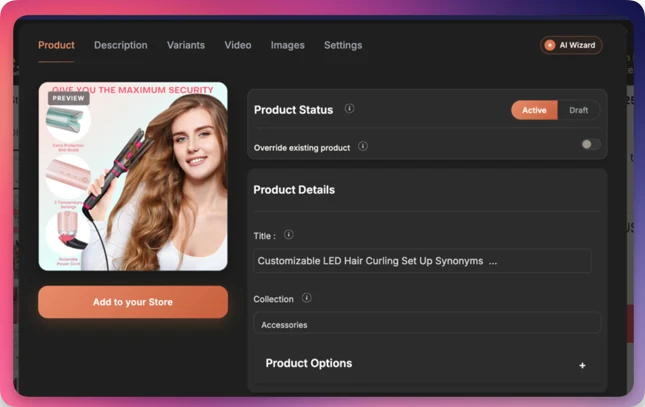
- Edit the essentials: title, description, images, variants, SKUs, tags, vendor, and product type.
- Rewrite the listing for shoppers: supplier copy is often written for marketplace buyers, not your store. Use the AI Product Optimizer on Premium or Gold to turn it into clearer retail copy.
- Set your price: use Smart Pricing Rules to apply your markup and price ending. Automated currency conversion is available on every plan.
- Split variants: Variant Splitting can turn one multi-variant listing into separate products.
- Assign collections: pick the collection in the import window. Importify remembers your last choice.
- Add product videos: if the supplier page includes a video, import it with the product video import workflow (Premium and Gold).
Add it to your store
When the product is ready, click Add to your store.
The product is published live by default. To import it as a draft, switch the toggle to Draft before importing.
After importing, the product is added to your store and also appears in your Importify import list. It will be published or saved as a draft, depending on the option you selected.
For DHgate, importing as a draft is often the better choice. Check variant names, product images, shipping promises, seller terms, and any branded-product claims before publishing.
Fulfill DHgate orders
When a customer places an order in your store, the order appears on your Importify Orders page.
To fulfill the order, click the Order button. Importify opens the DHgate product page so you can place the order manually.
Before paying on DHgate, confirm the live price, selected variant, shipping method, shipping cost, and destination country.
DHgate orders are fulfilled manually. Importify's automated order fulfillment is only available for AliExpress orders.
Check the seller before selling
DHgate listings are controlled by individual sellers, so verify the seller before you build a product page around the listing:
- Check seller rating, order history, reviews, shipping options, and processing time.
- Confirm the seller can ship to the countries you sell to.
- Check whether the listed price changes by variant, quantity, or shipping method.
- Avoid branded products unless you have clear permission to resell them. See dropshipping policies and supplier permissions
- Do not assume that importing a product means the seller supports dropshipping. Importify is a product-import tool, not the supplier or seller of record.
Related Guides And References
- DHgate
- Importify supported suppliers
- Importify Chrome extension guide
- Importify on Shopify App Store
- Variant Splitting guide
Frequently asked questions
Do I need to log in to DHgate before importing?
No. You do not need to sign in to DHgate before importing with the Importify Add button. You only need to sign in to DHgate when fulfilling an order. Before importing, review product details, prices, variants, shipping options, and availability on the live DHgate product page.
Can I import DHgate products to WooCommerce and Wix, not just Shopify?
Yes. Importify imports DHgate products to Shopify, Wix, WooCommerce, BigCommerce, and Jumpseller. The import and customization steps are the same on every supported store platform.
Does Importify fulfill DHgate orders automatically?
No. DHgate orders are fulfilled manually. When a customer places an order, open the order from your Importify Orders page, go to the DHgate product page, and place the order yourself using your customer's shipping address.
Importify's automated order fulfillment is only available for AliExpress orders.
What should I check before selling a DHgate product?
Check the seller rating, reviews, product variants, shipping methods, processing time, destination-country support, and whether the product is branded. Importing a product does not guarantee that the seller supports dropshipping or that you have resale rights.